Virtual machines and containers
Creating a Project
To instantly create a project, go to the Cloud section and the Virtual machines tab.
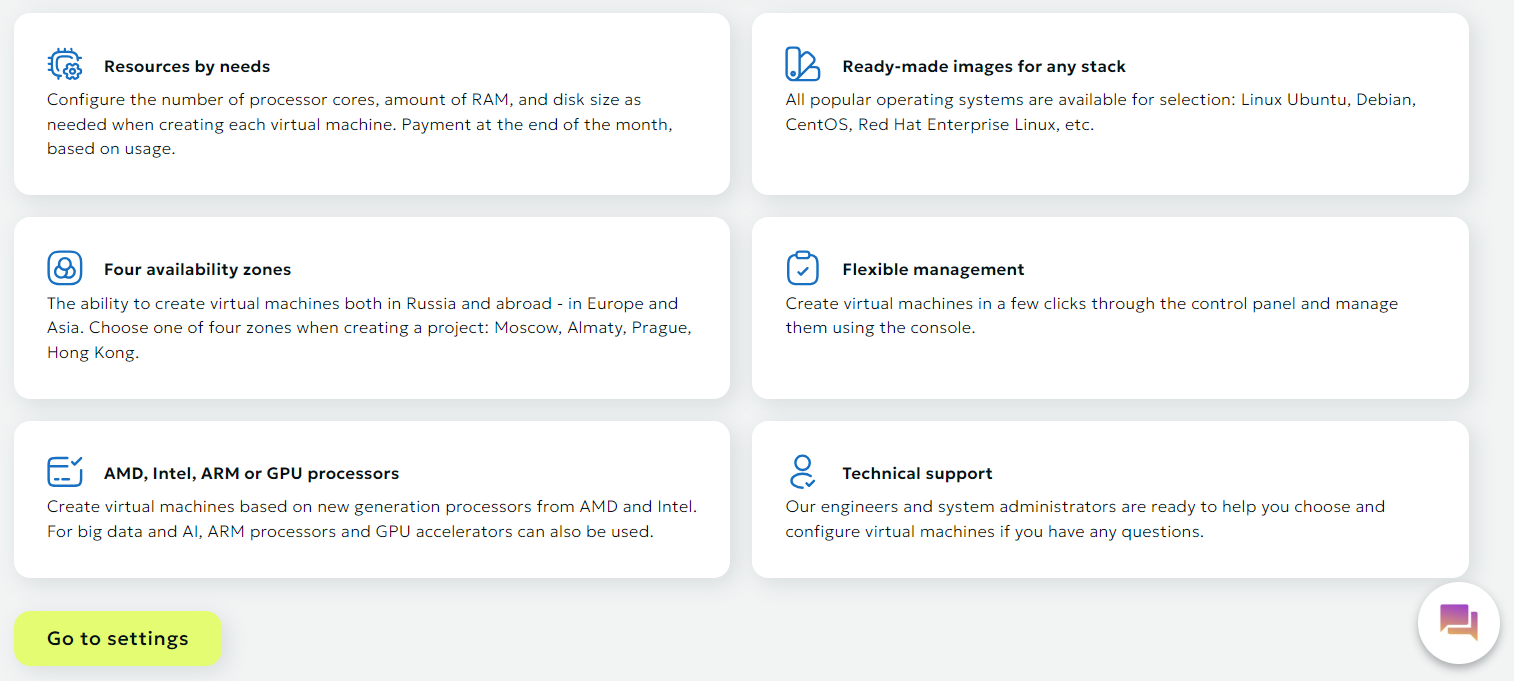
If you have not created cloud projects with us before then the first thing you will see in the section is a general description of the available zones, processors and the service as a whole. Immediately below the description there is a button Go to settings:
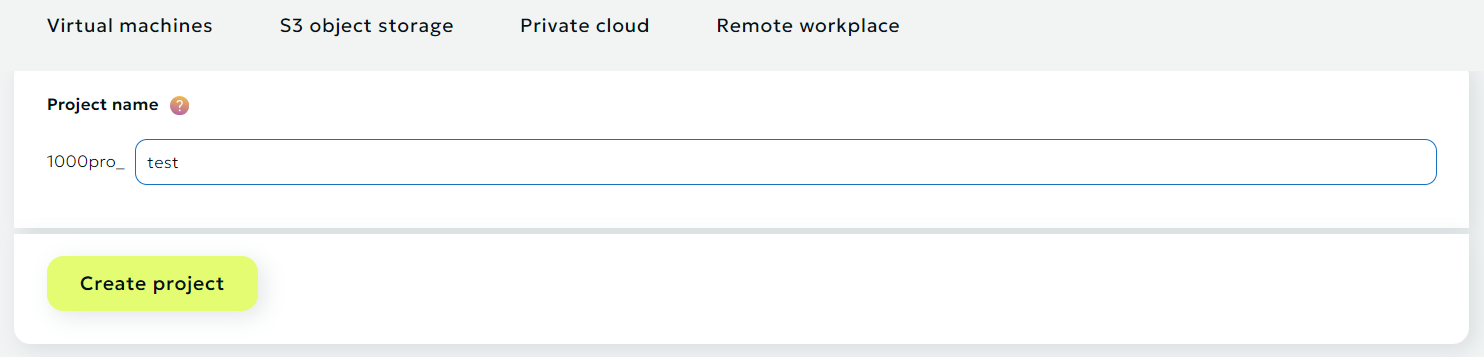
You only need to select the project name, and then click on the Create project button. The project will be automatically created for all regions, and you can decide later in which of them to create each virtual machine.
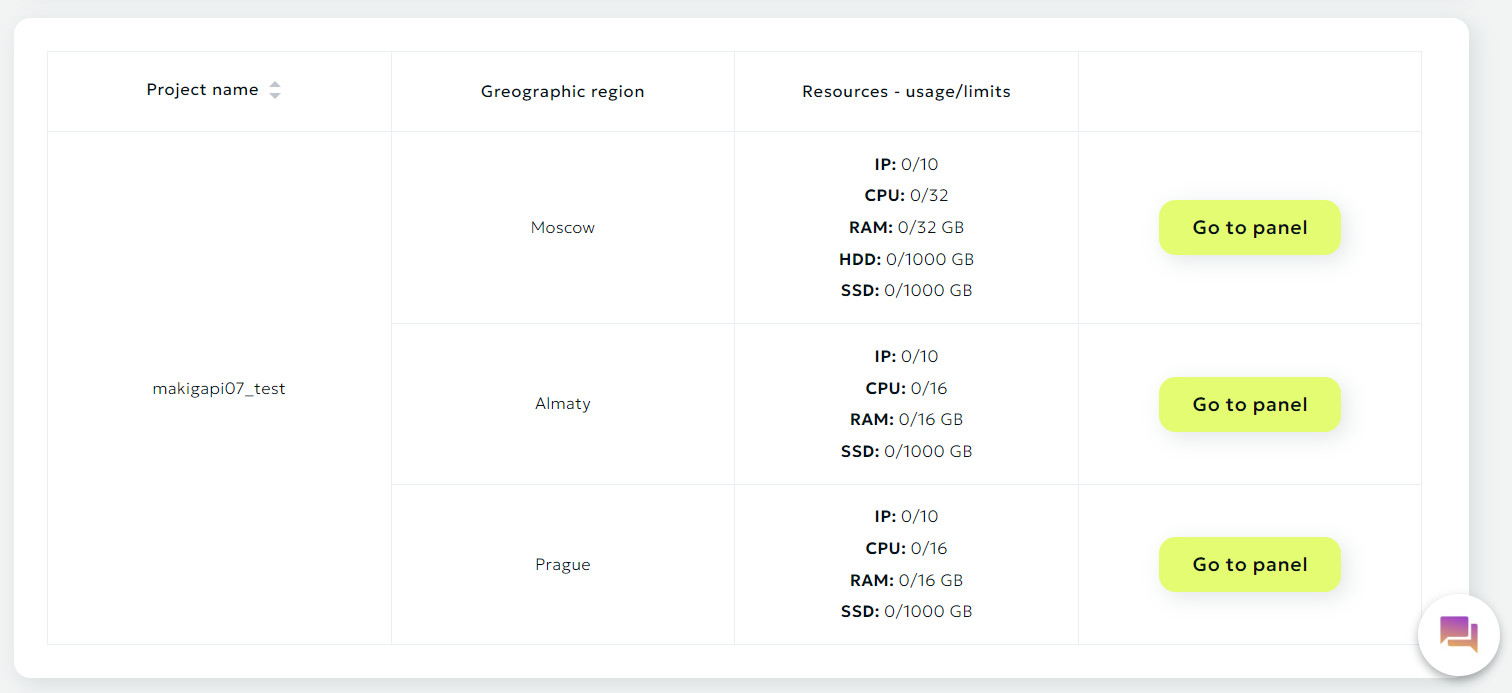
After creating a project, you will see a table with projects as well as the resources (usage/limits):
Logging into the virtual machines and containers control panel
To enter the panel select the desired project and geographic area from the list and click the Go to panel.
After this, you will find yourself in our cloud infrastructure control panel. Where you can create virtual machines in a few clicks.
The interface is intuitive, but let's look at all the possibilities in order.
Managing virtual machines and resources
Managing virtual machines
After going to the virtual machine control panel you will have access to an interface with all the necessary functions.
The geographic area will be indicated in the upper left corner of the panel.
On the main page, the panel displays the number of resources occupied and available within the project in the zone you have selected.
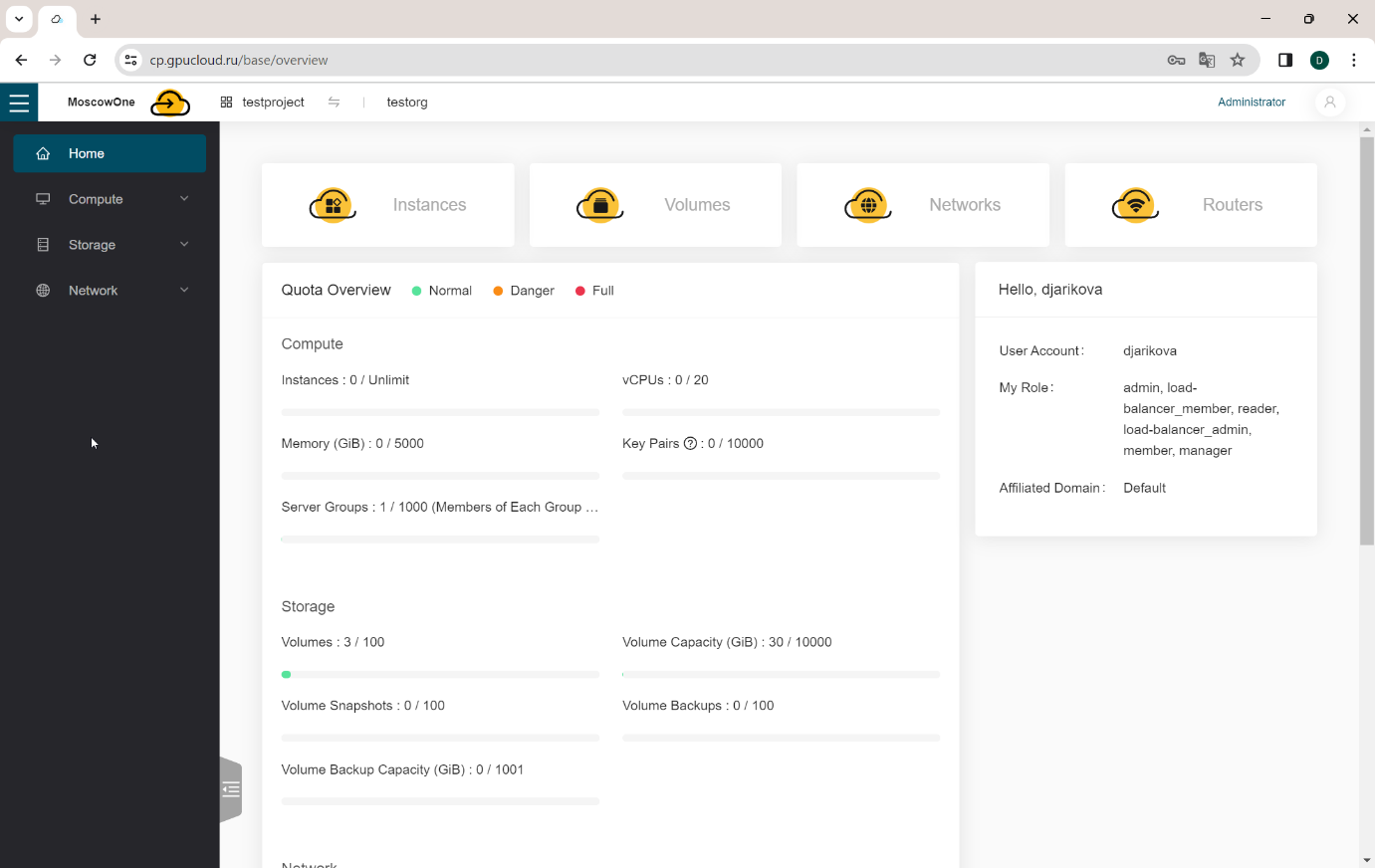
For each new project, quotas are set by default for the allocated amount of resources:
- in the zone – Moscow: 32 vCPU, 32 Gb RAM, 1000 Gb disk SSD, 1000 Gb disk HDD, 10 IPv4
- in the zone - Almaty: 16 vCPU, 16 Gb RAM, 1000 Gb disk SSD, 10 IPv4
- in the zone – Prague: 16 vCPU, 16 Gb RAM, 1000 Gb disk SSD, 10 IPv4
To expand quotas, you must contact your manager and agree on new quotas with him.
Creating a virtual machine
-
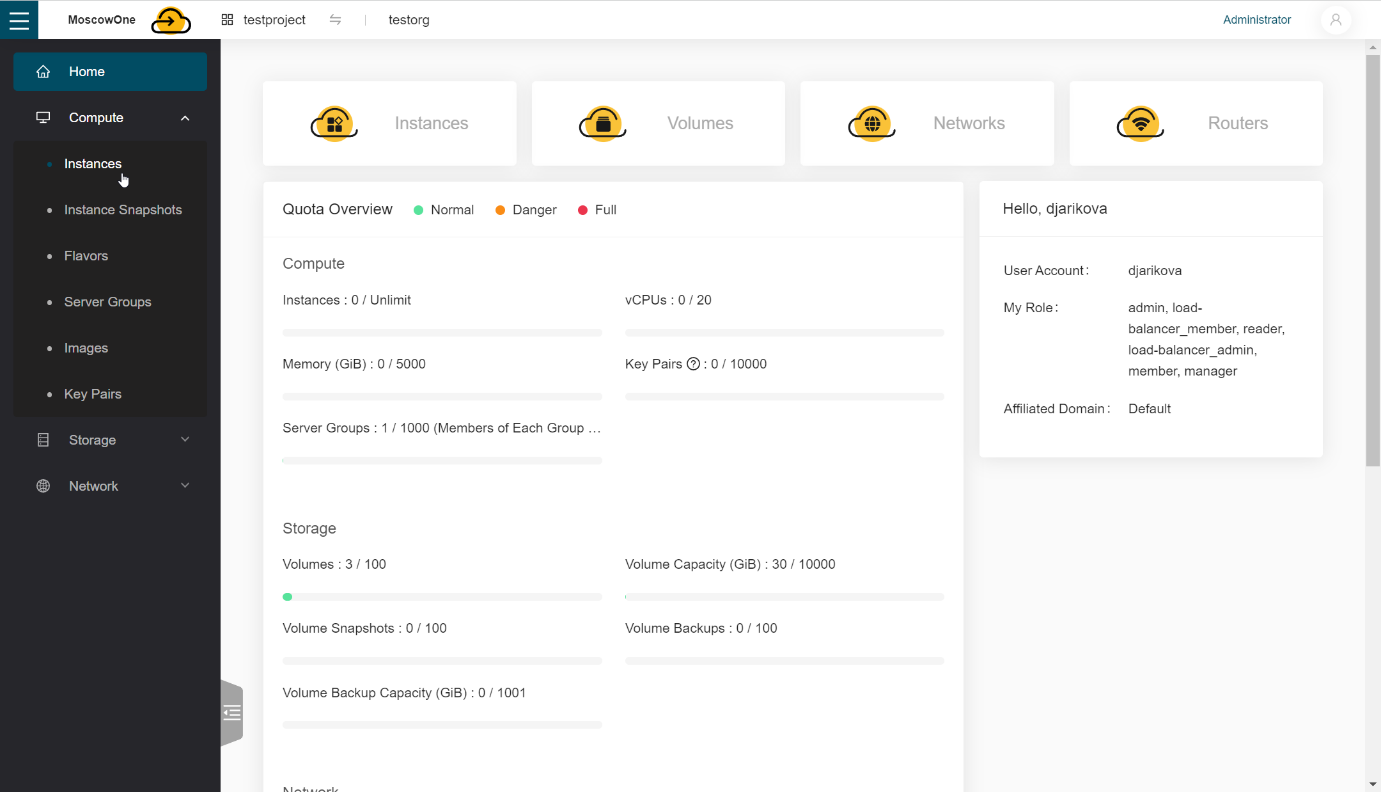
To create a virtual machine, go to the second tab in the left menu Compute.
-
Selecting Images -> Public Images, you can view the available images for creating a virtual machine.
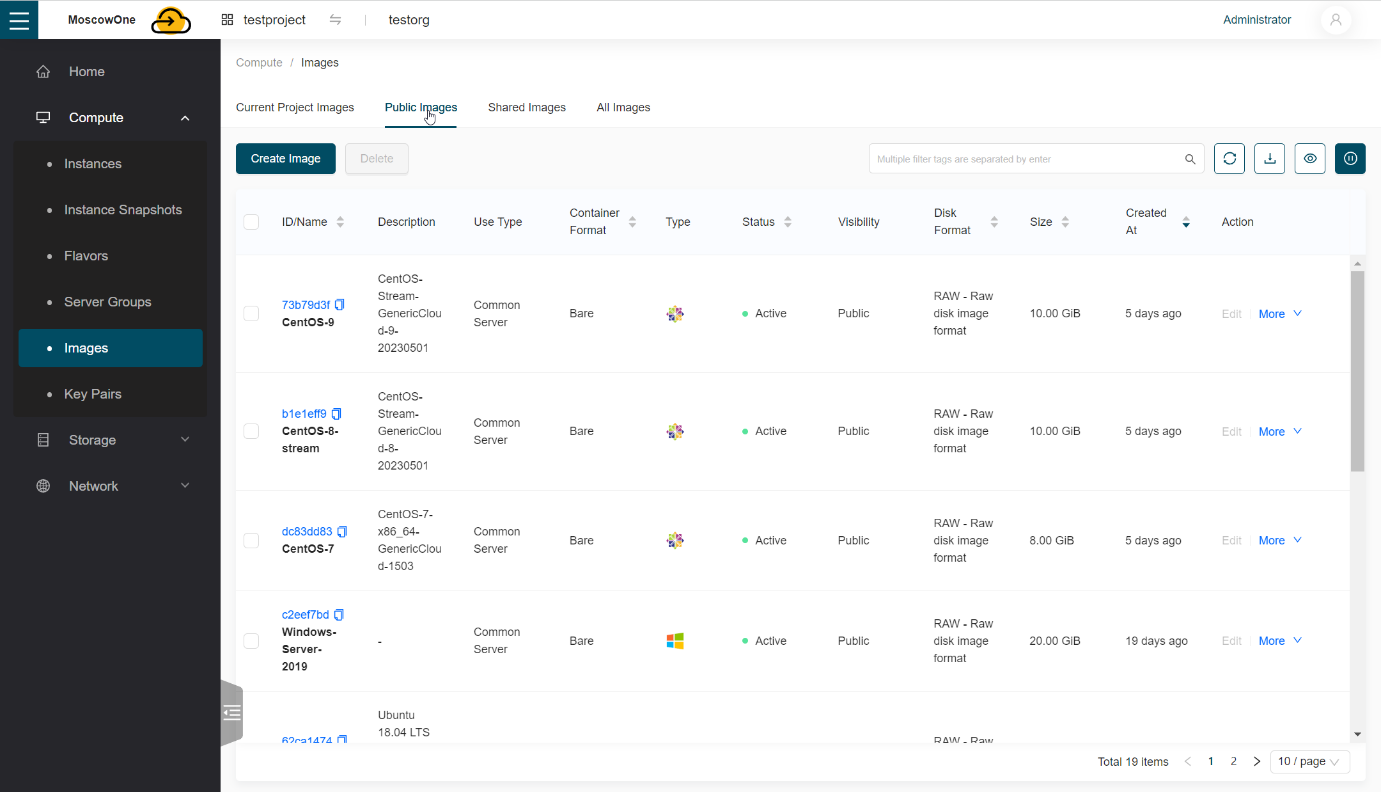
If the required image is not in the panel, you can contact support, support staff will add the required image, or they will give you the opportunity to add new images to your project yourself; by default, this function is disabled.
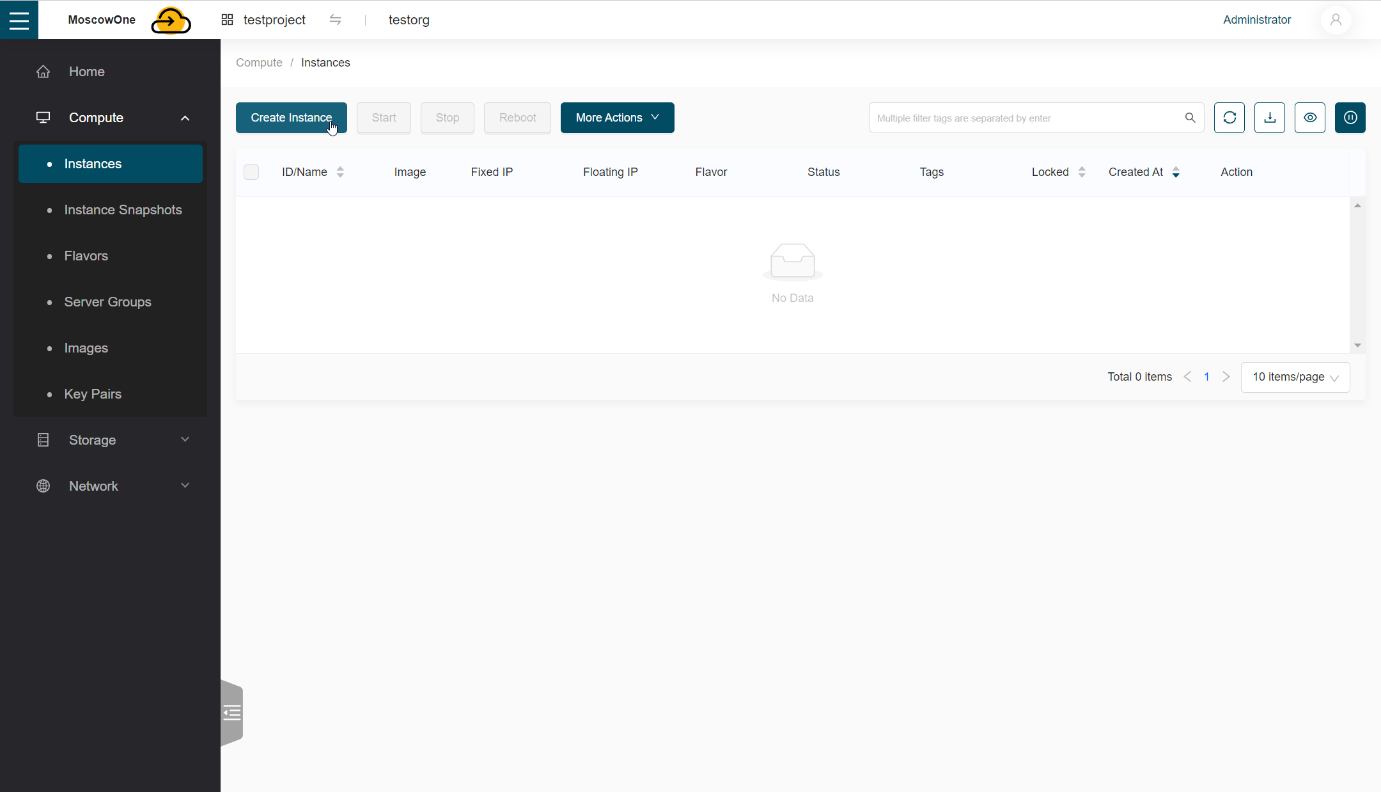
Next, select Instances and click Create Instance.
-
Leave Available Zone as default and select the virtual machine configuration in the Specification field.
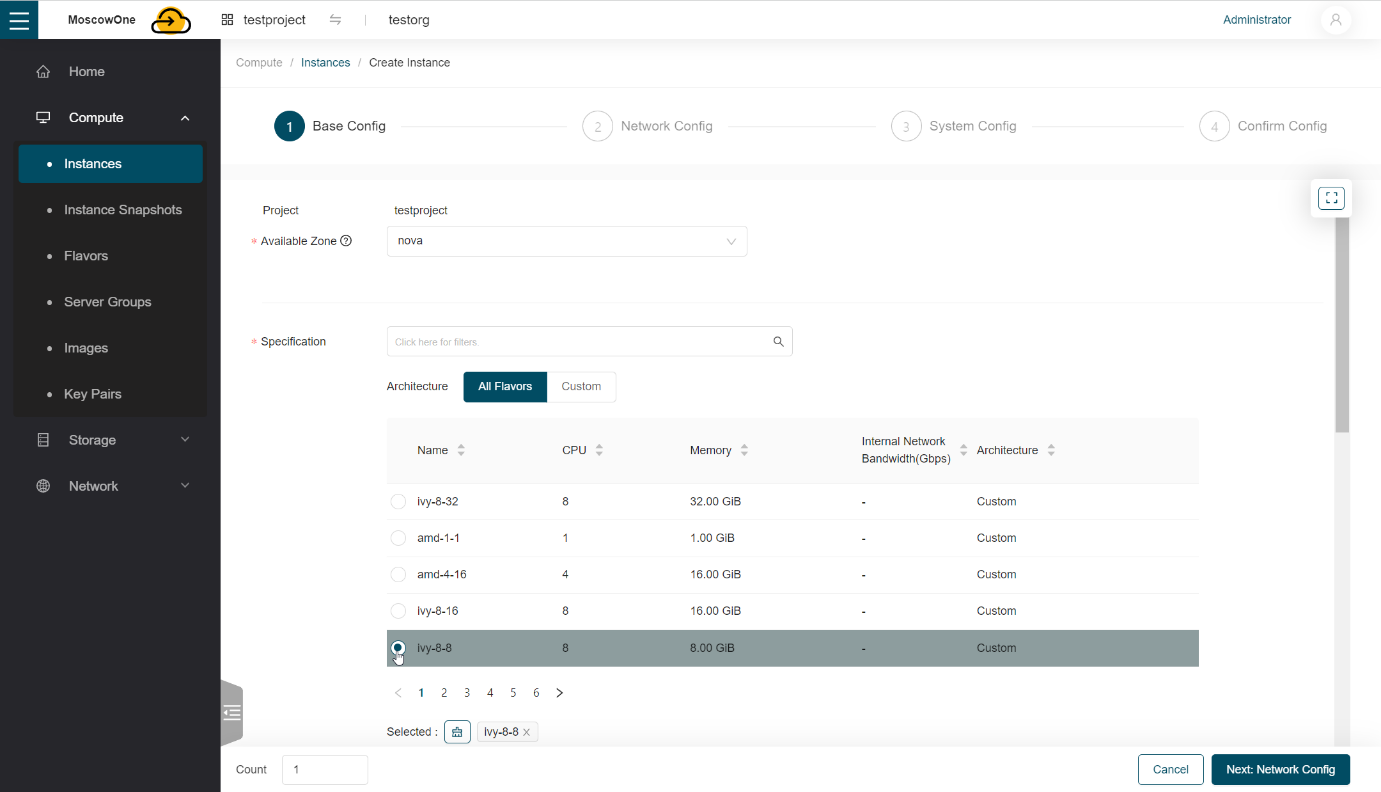
The configuration name includes the processor type, number of vCPUs and vRAM.
Example:
From configuration
amd-1-1a virtual machine will be created based on an AMD processor with 1 VCPU and 1 Gb vRAM. -
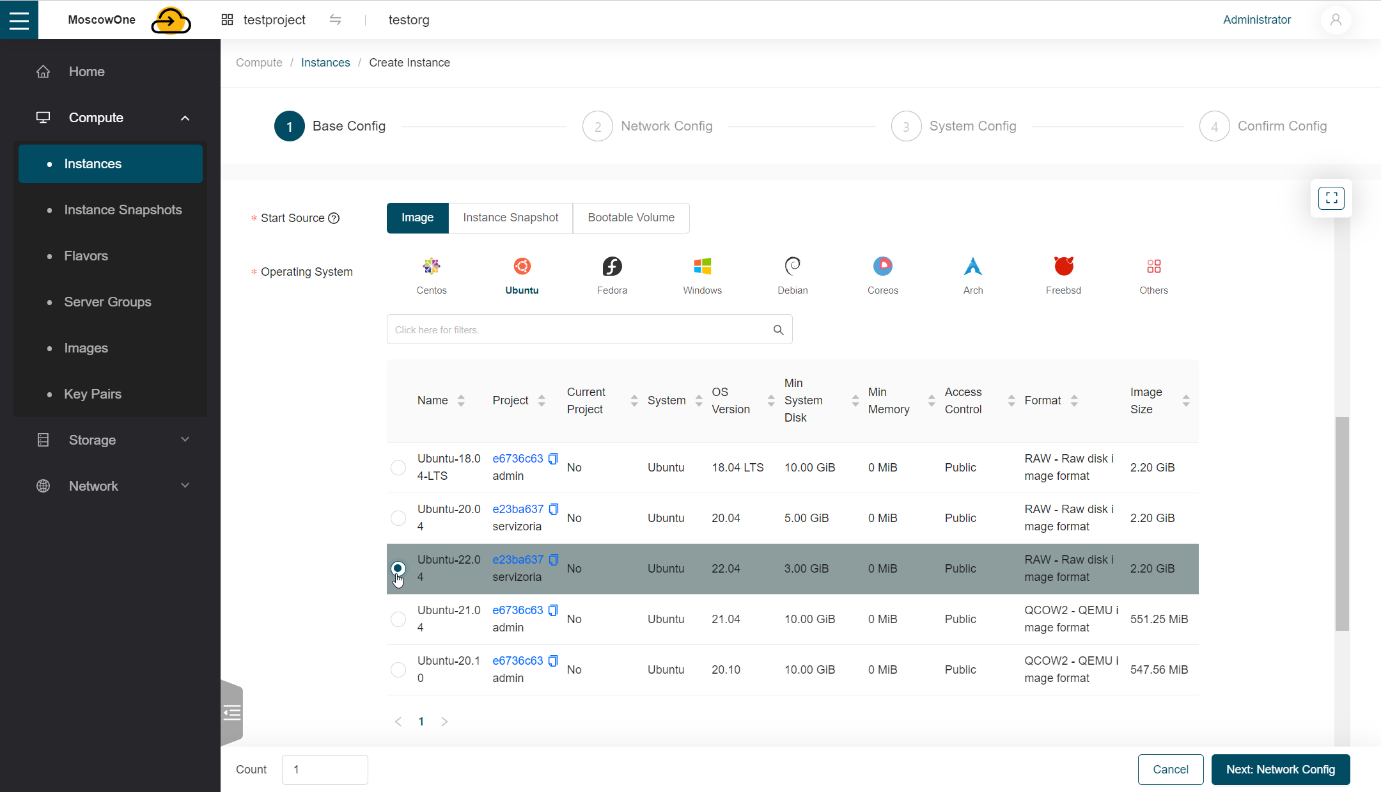
Select the operating system image in the Operating System section.
-
In the System Disk section select the disk type and set its size.
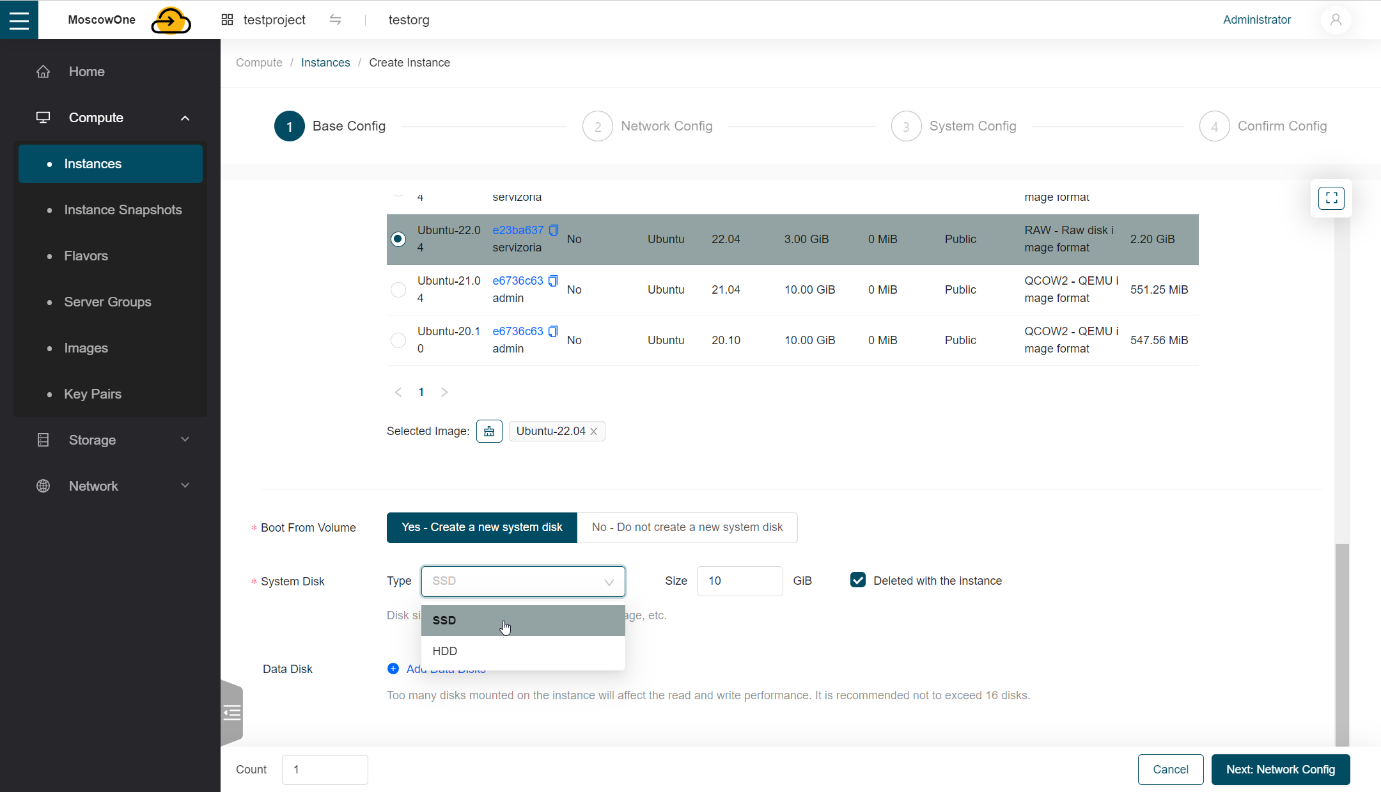
You can choose the disk size arbitrarily, depending on your tasks. When choosing the size of the installation disk, we recommend that you take into account that it should not be smaller than the size occupied by the operating system image.
Next to the window for specifying the disk size, the checkbox Deleted with the instance is checked. This setting is set by default and means that when this virtual machine is deleted, the disk will be deleted along with it.
If you want to keep the disk when deleting the machine you create, you need to uncheck this setting.
You can see your disk after deleting the virtual machine in the Storage Volumes section.
If necessary, you can add another disk in the Data Disk section by clicking Add Data Disk. You can also always add a new disk to the virtual machine later.
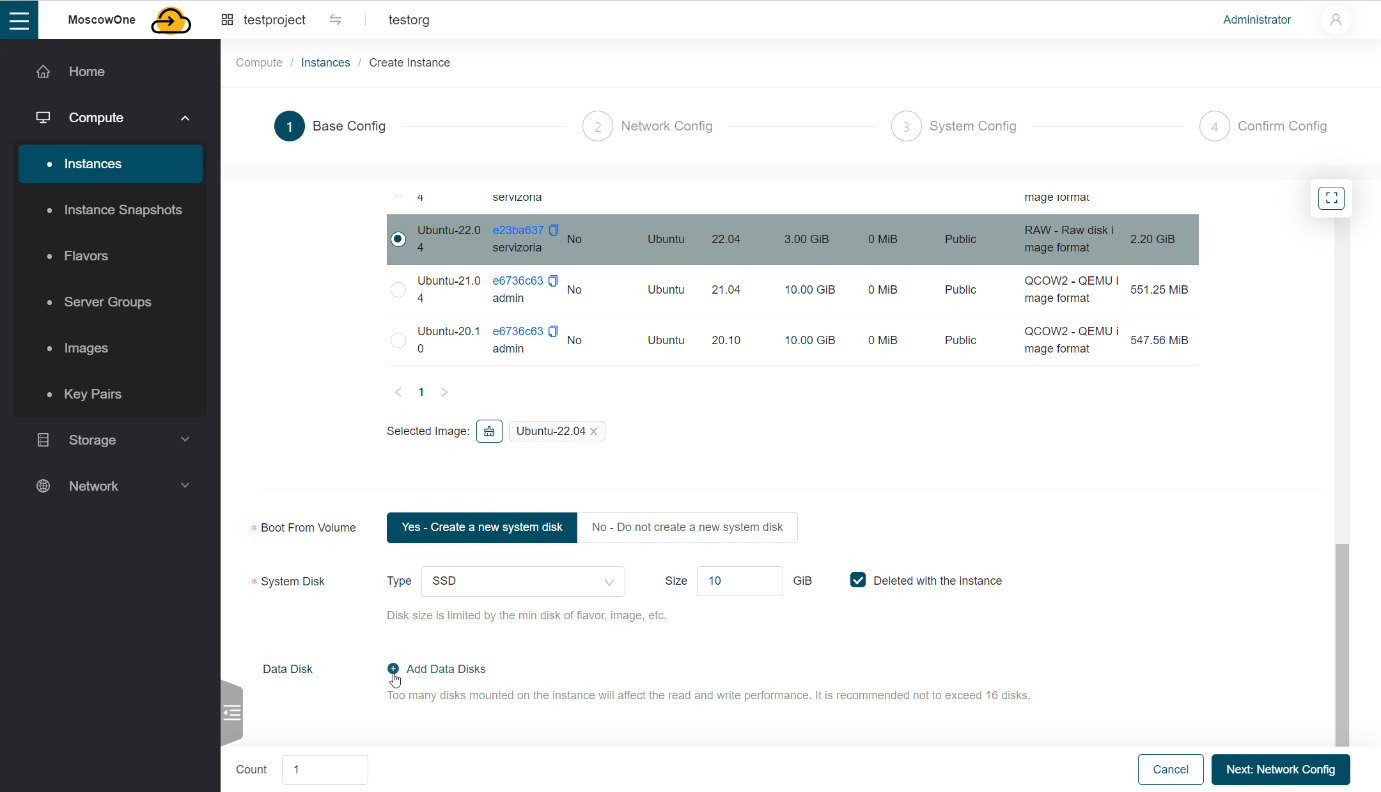
Further press Next: Network Config.
-
Network Config section appears, select Shared Networks and select the public network, the IP address is assigned automatically.
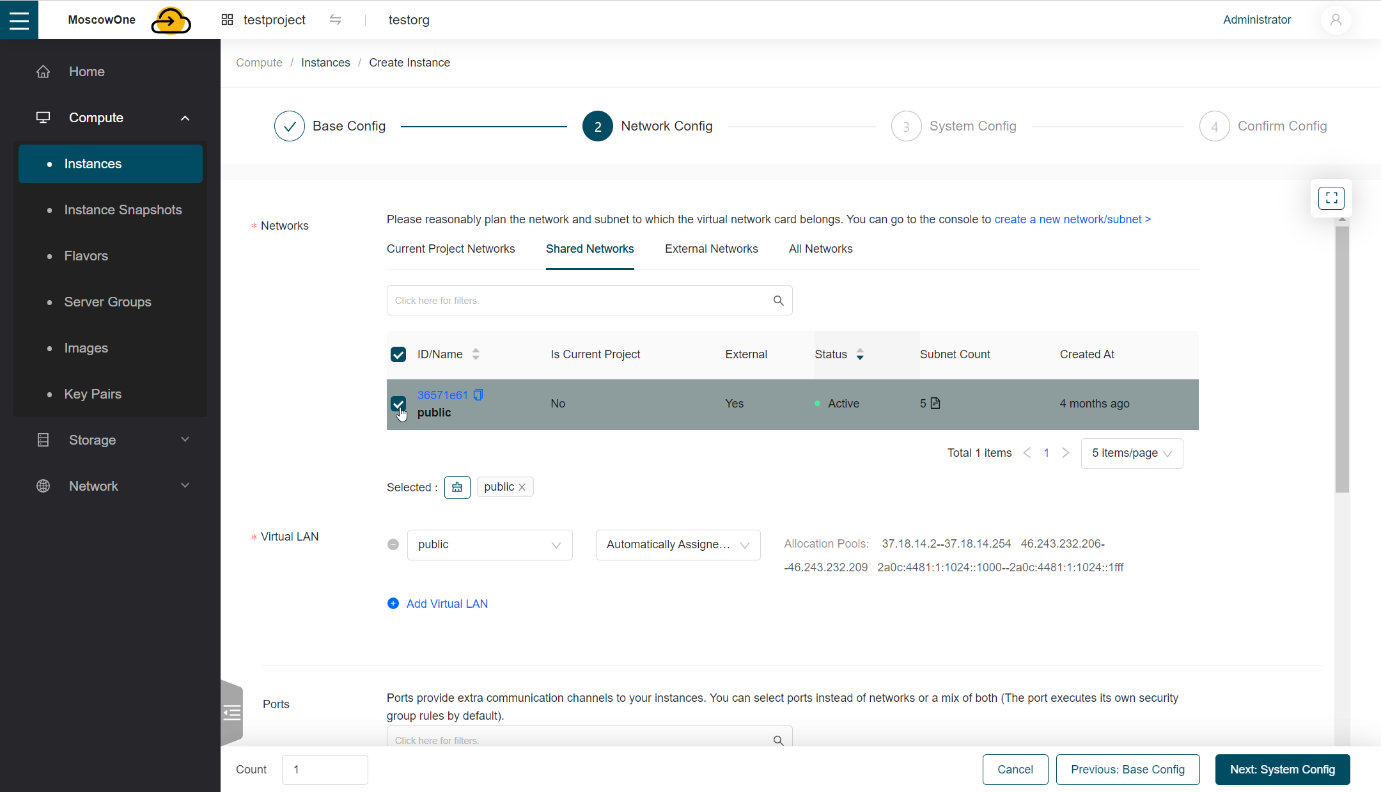
If necessary, you can add another address by clicking Add Virtual LAN.
-
At the bottom select Security Group.
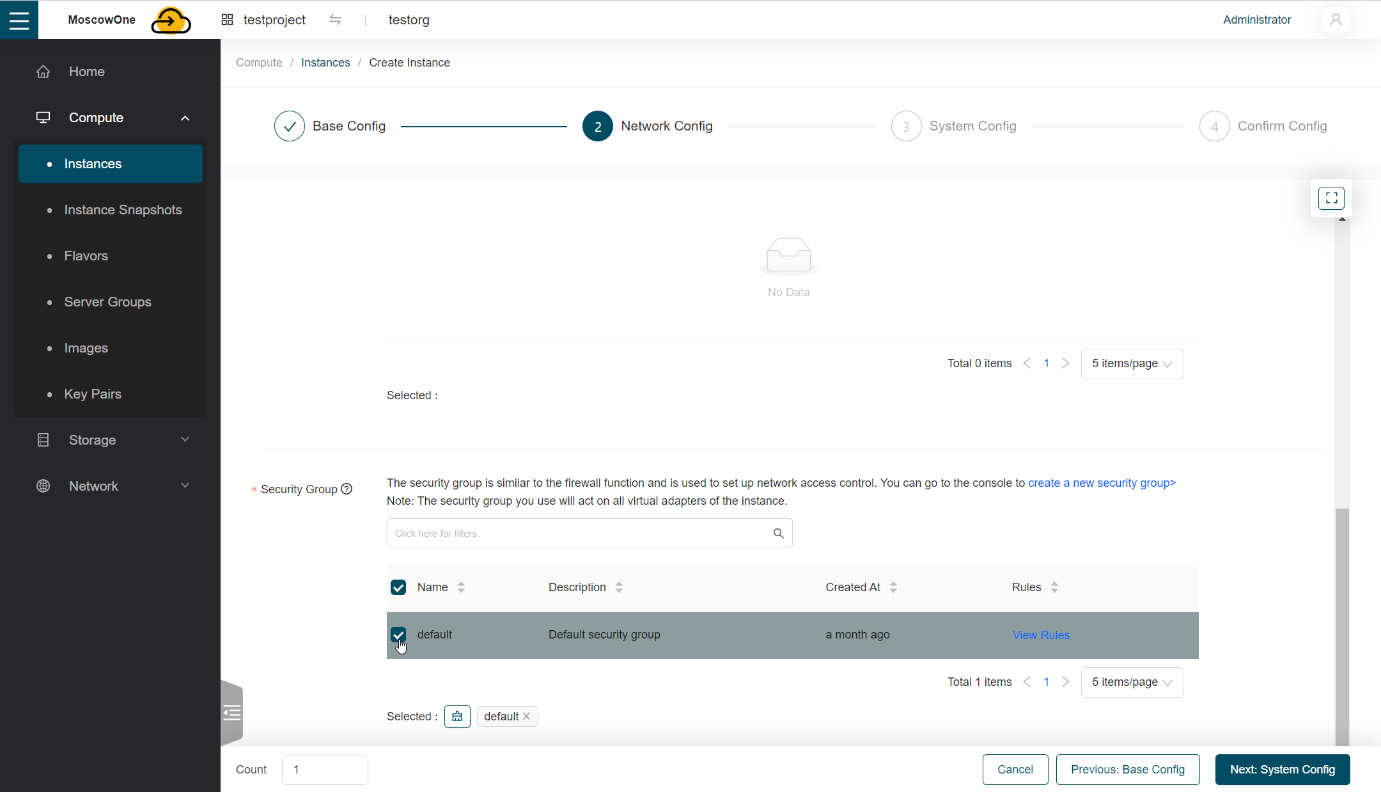
Further press Next: System Config.
-
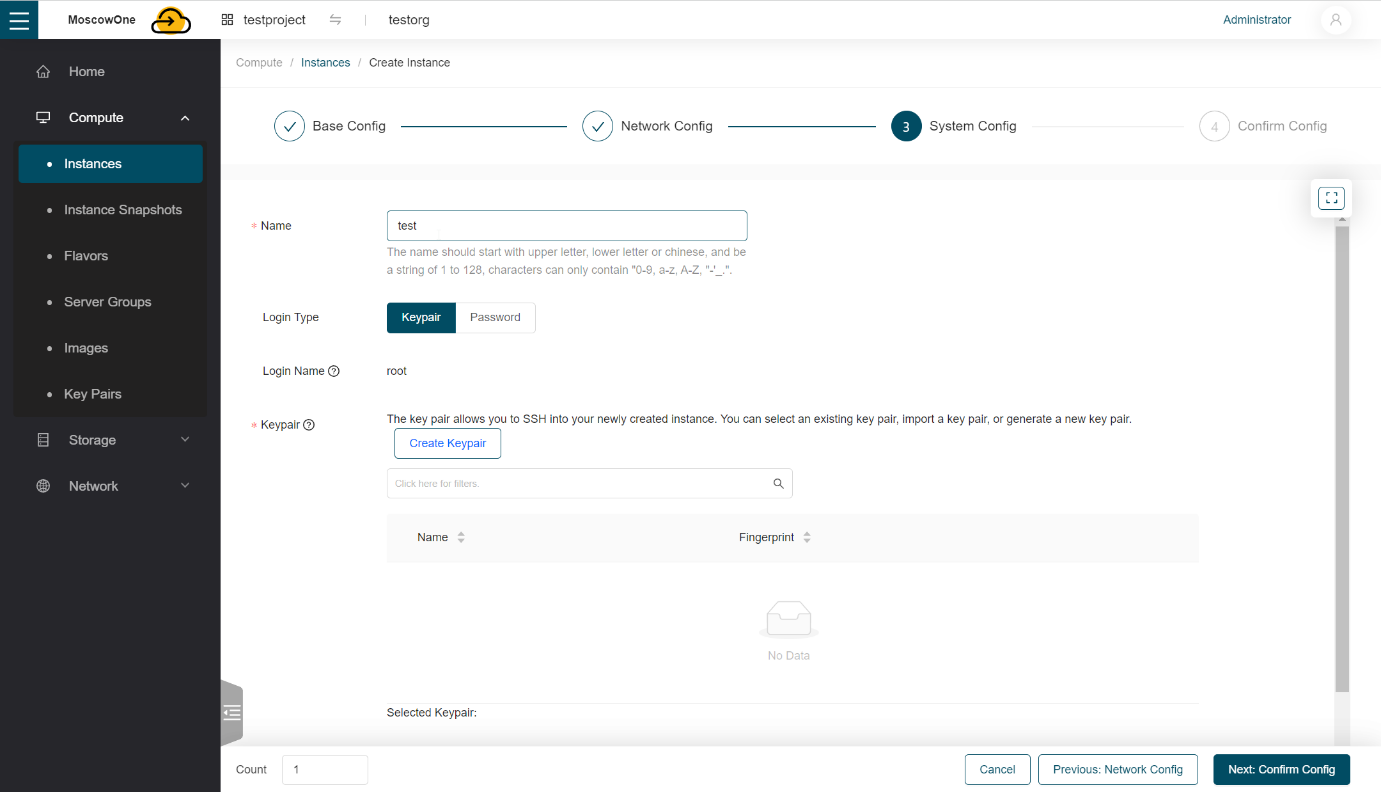
In the Name field enter the name of the virtual machine
-
In the Login Type section select how the virtual machine will be accessed, via SSH (Keypair) or password (Password)
Using SSH keys allows you to secure SSH access to virtual machines. You can generate a pair of keys with which you will connect to virtual machines via SSH. The private key will be stored on the client and you can copy it to other nodes. The public key will need to be downloaded and specified when creating the virtual machine. It will be injected into the virtual machine using Cloud-Init and used for OpenSSH authentication. Key injection is supported for Linux virtual machines.
We recommend using SSH keys to access virtual machines.
-
To access a virtual machine via SSH, you need to add a public key to the panel; to do this, click Create Keypair.
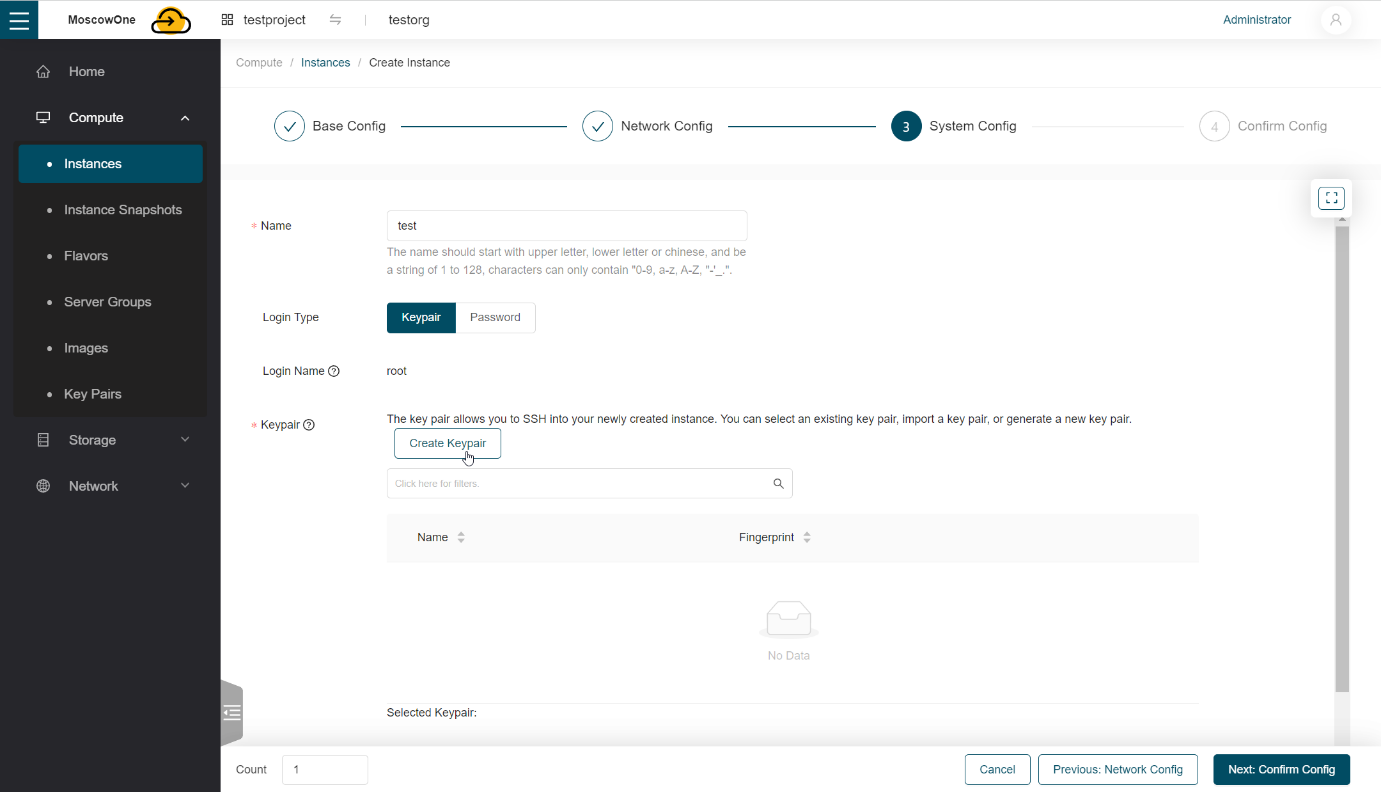
You can either create a new key pair or import your existing key.
 #ps1
net user Administrator «Password»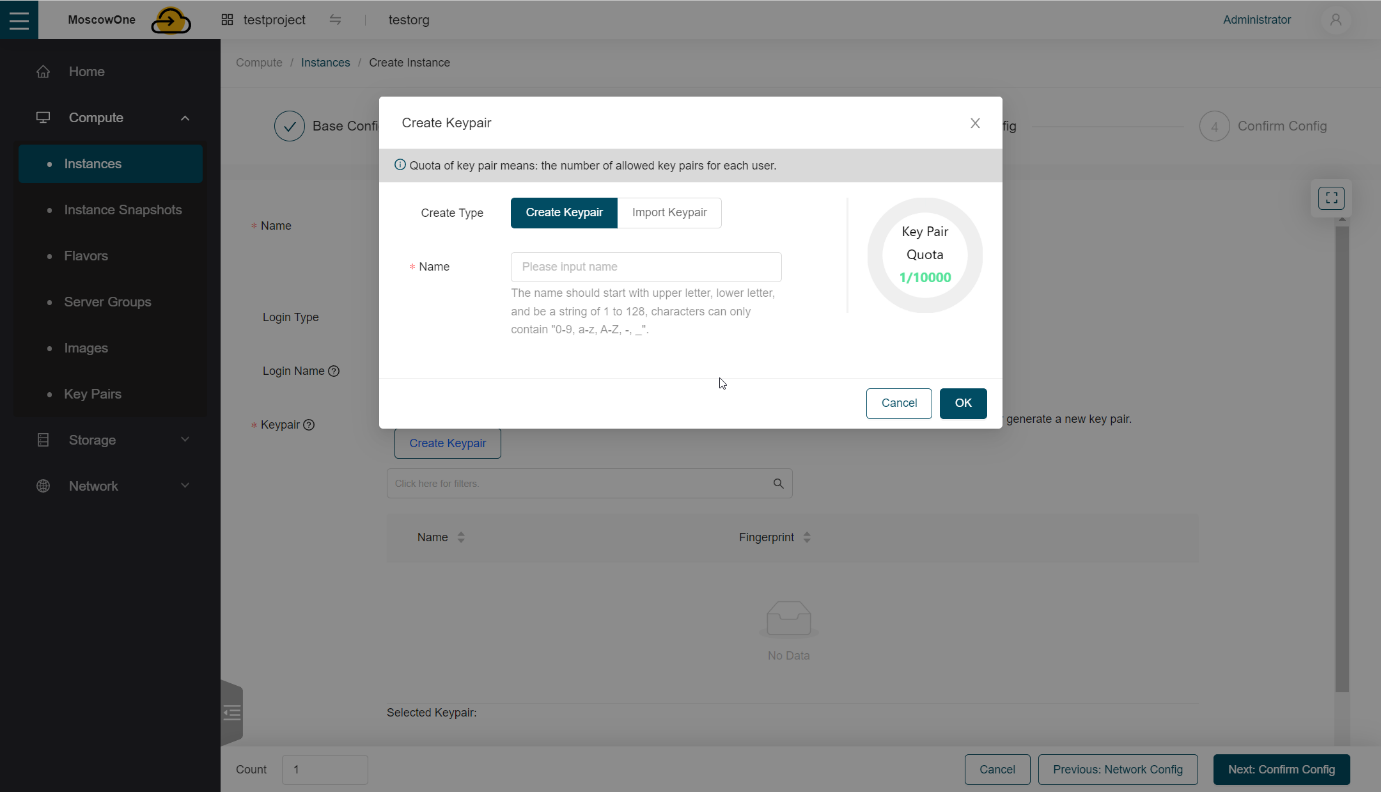
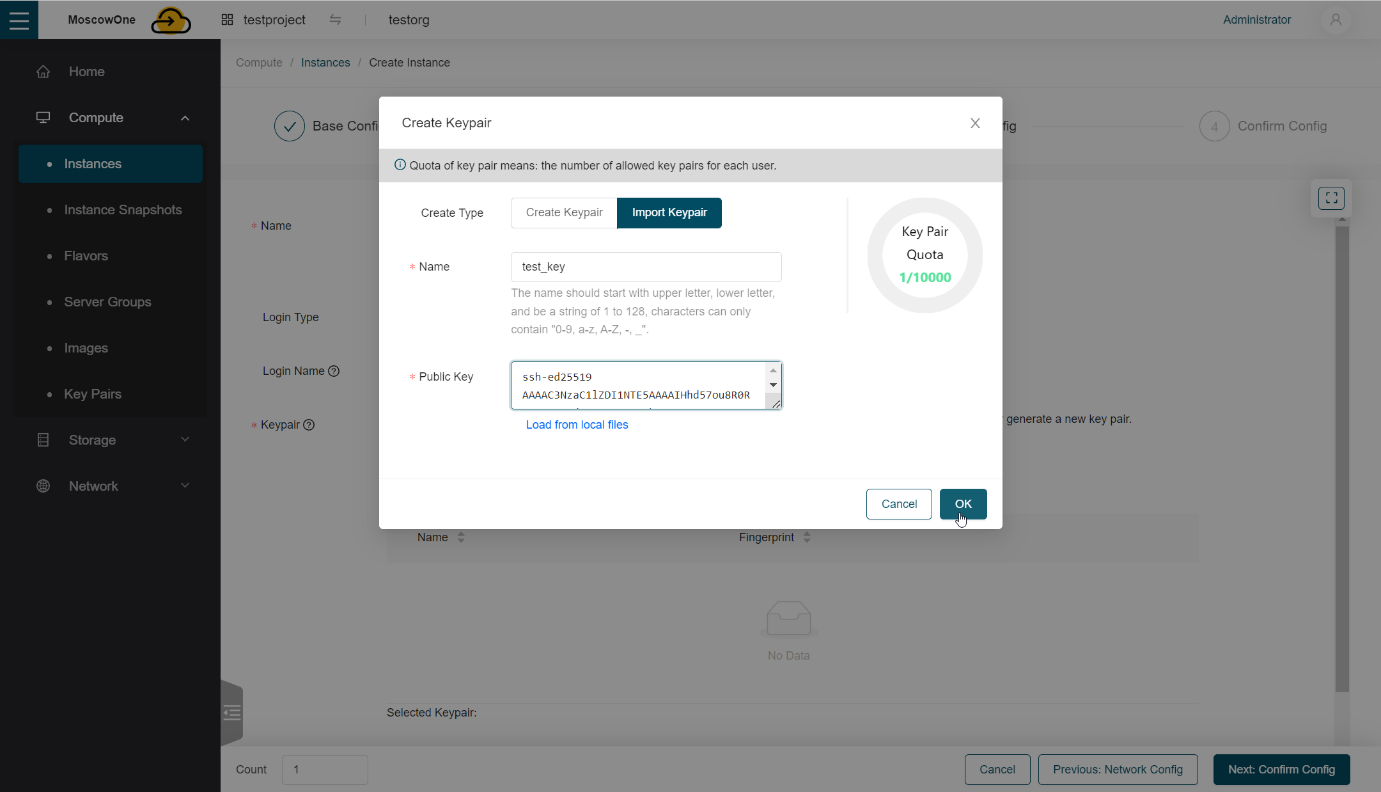
After adding the key, click OK.
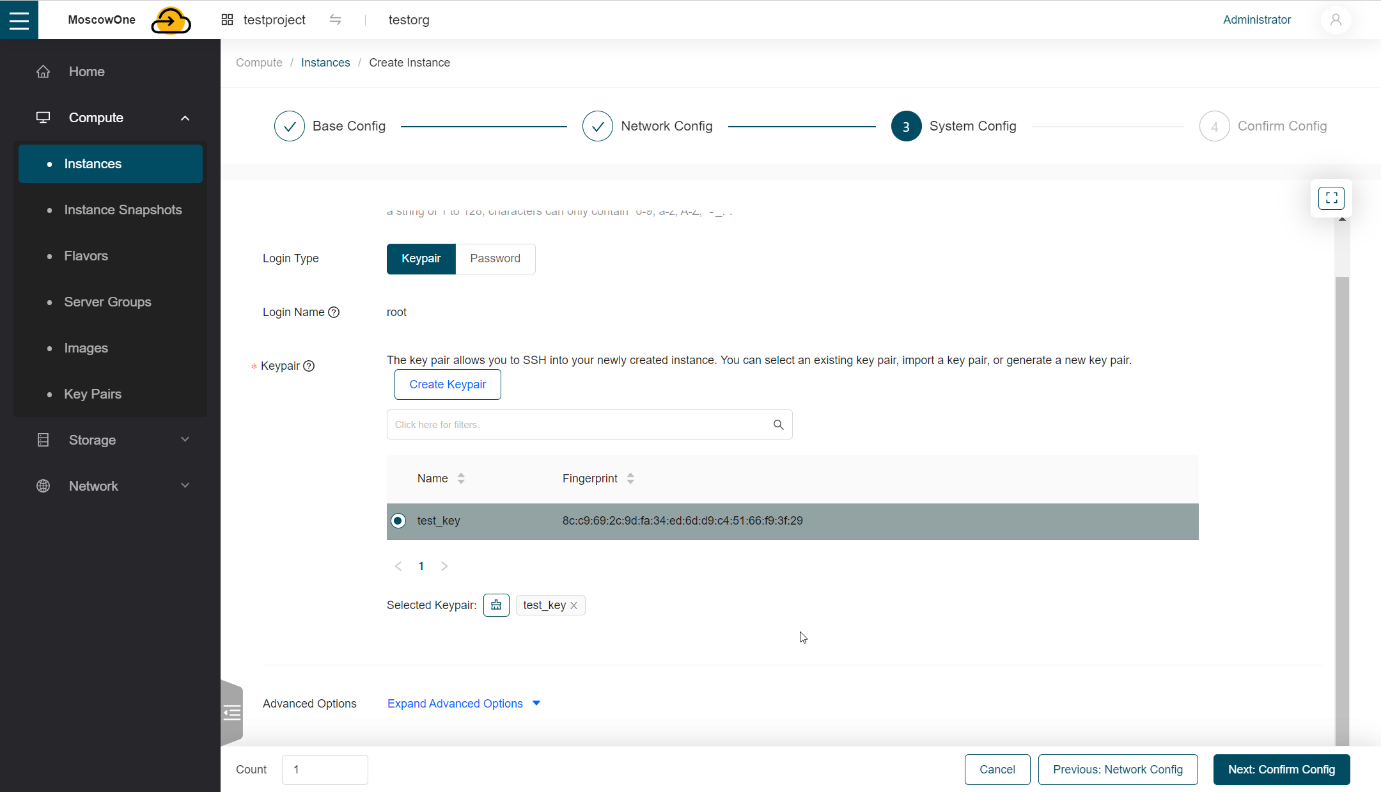
You can also create or upload an SSH key to the virtual machine control panel in advance, in the Compute -> Key Pairs section, using the same algorithm.
-
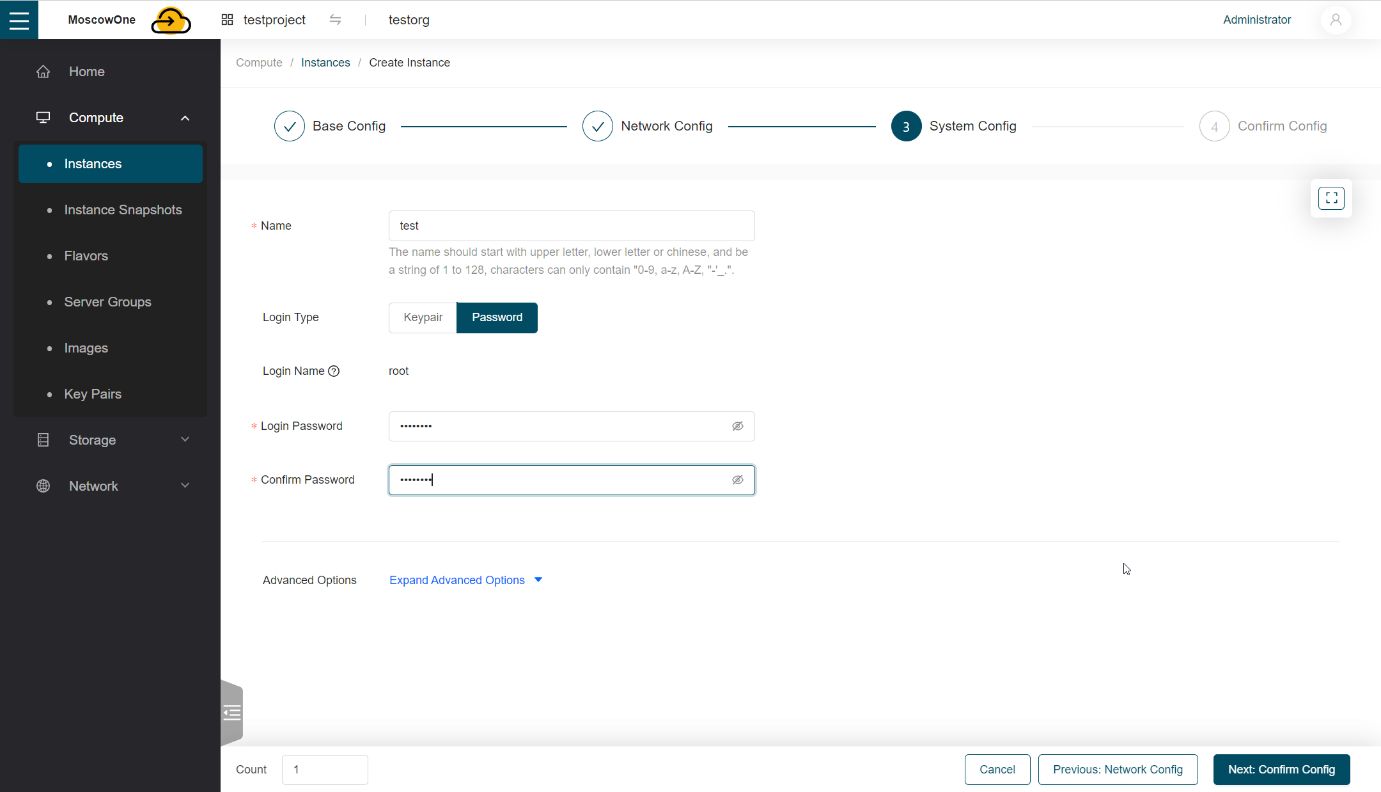
To access the virtual machine using a password, select Password and enter the password in which we will connect to the virtual machine.
-
Password access to a virtual machine running the Windows operating system.
At the stage of creating a virtual machine, select password access and enter any password (at this stage, the entered password does not affect the access settings), then expand the Expand Advanced Options tab at the bottom.
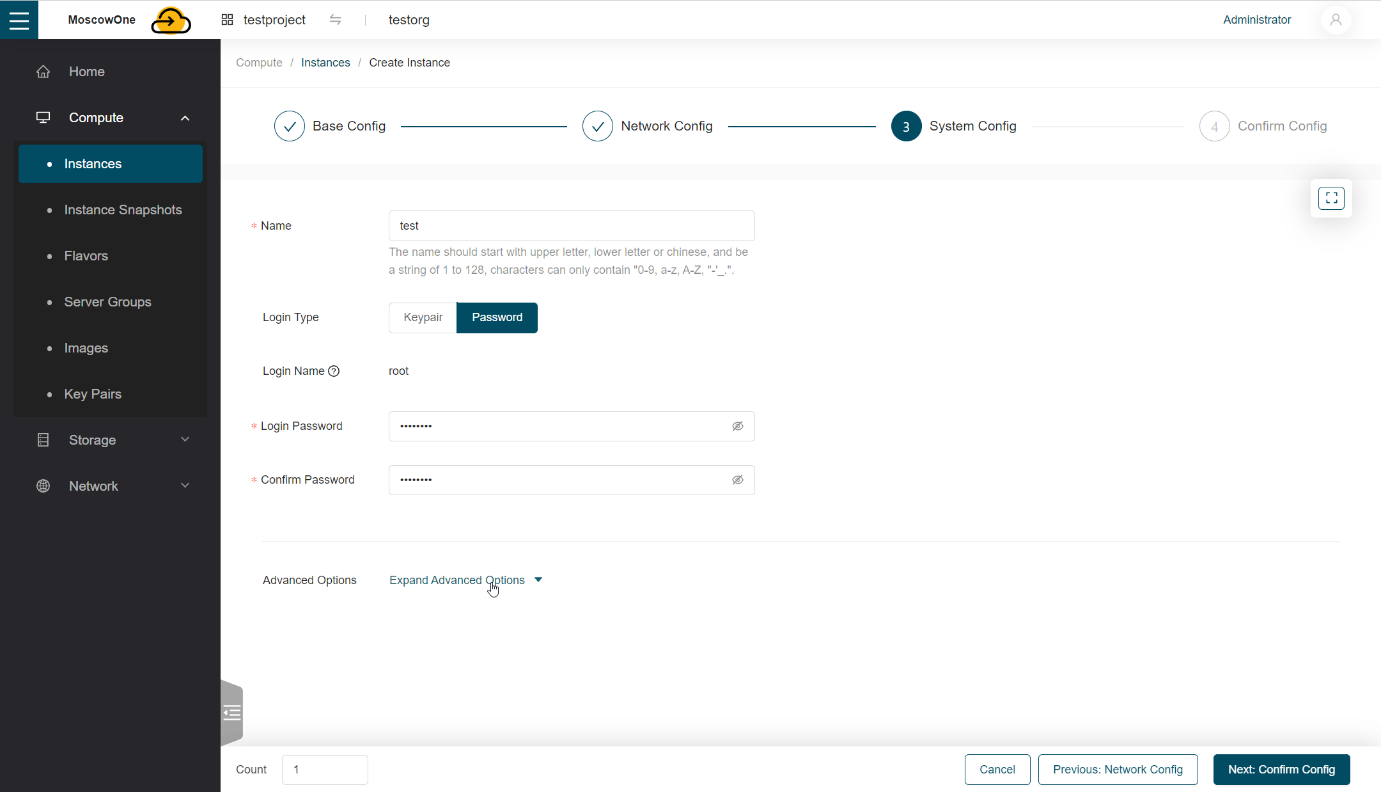
In the User Data field enter script:
Where
«Password»after Administrator should be the password with which you will log into the system.Important: there is a space in the first line after
#ps1, it is important.An example of a script with the password
1qaz@WSXis shown in the screenshot below: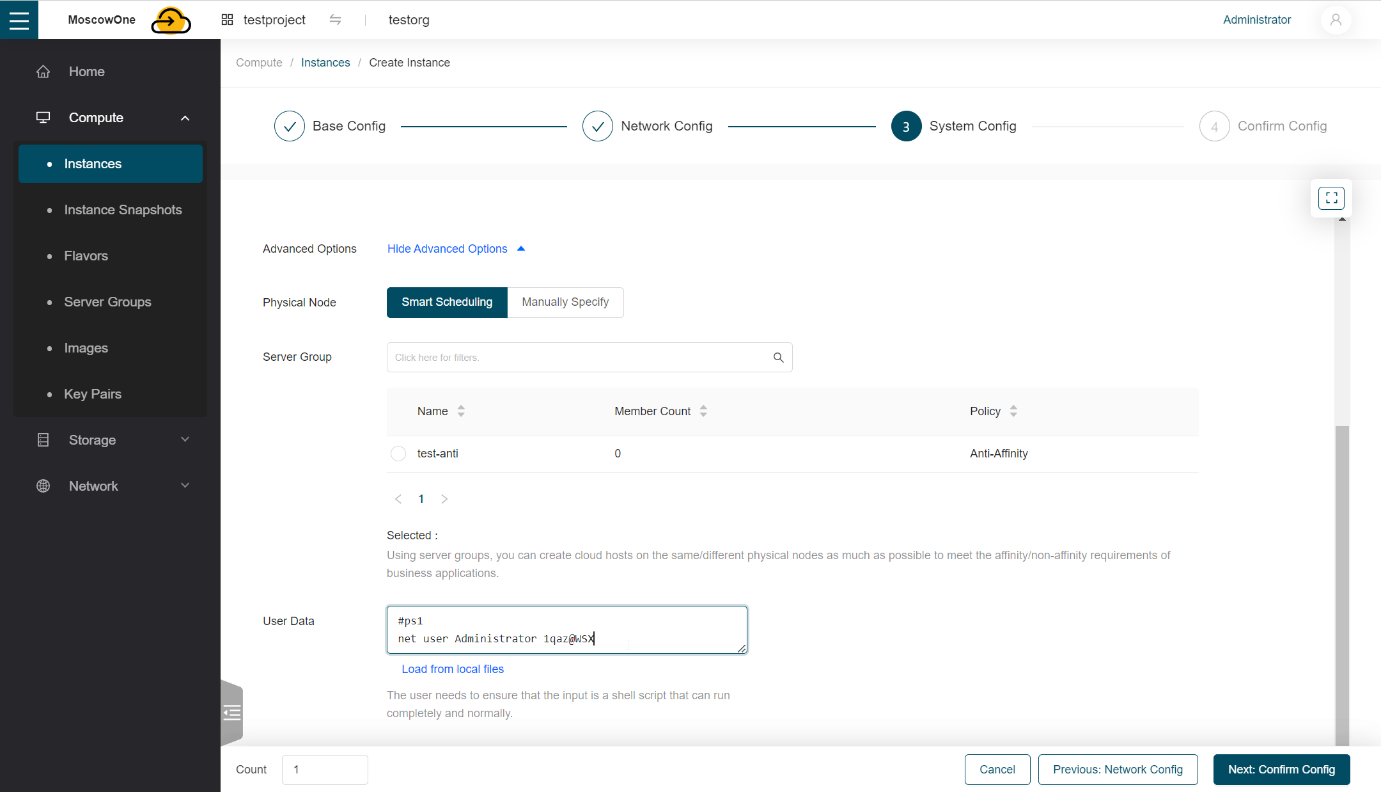
Further press Next: Confirm Config.
-
-
In a new tab we check the configuration of the virtual machine
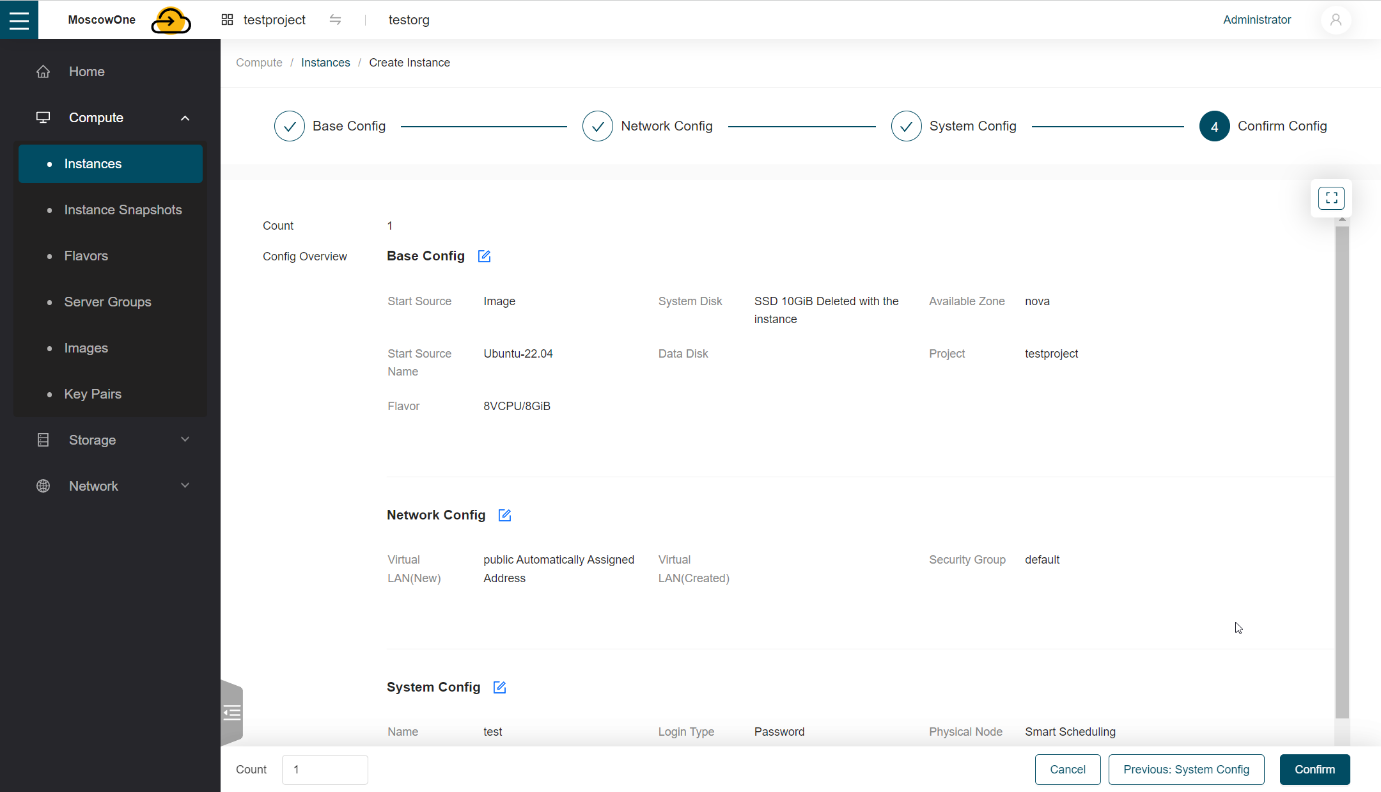
Click Confirm at the bottom right.
We wait until the virtual machine is created; during the creation of the virtual machine, an IP address will be allocated to it and it will become accessible over the network.
Once the virtual machine is created, you will be able to see it in the panel under the same Compute -> Instances tab.
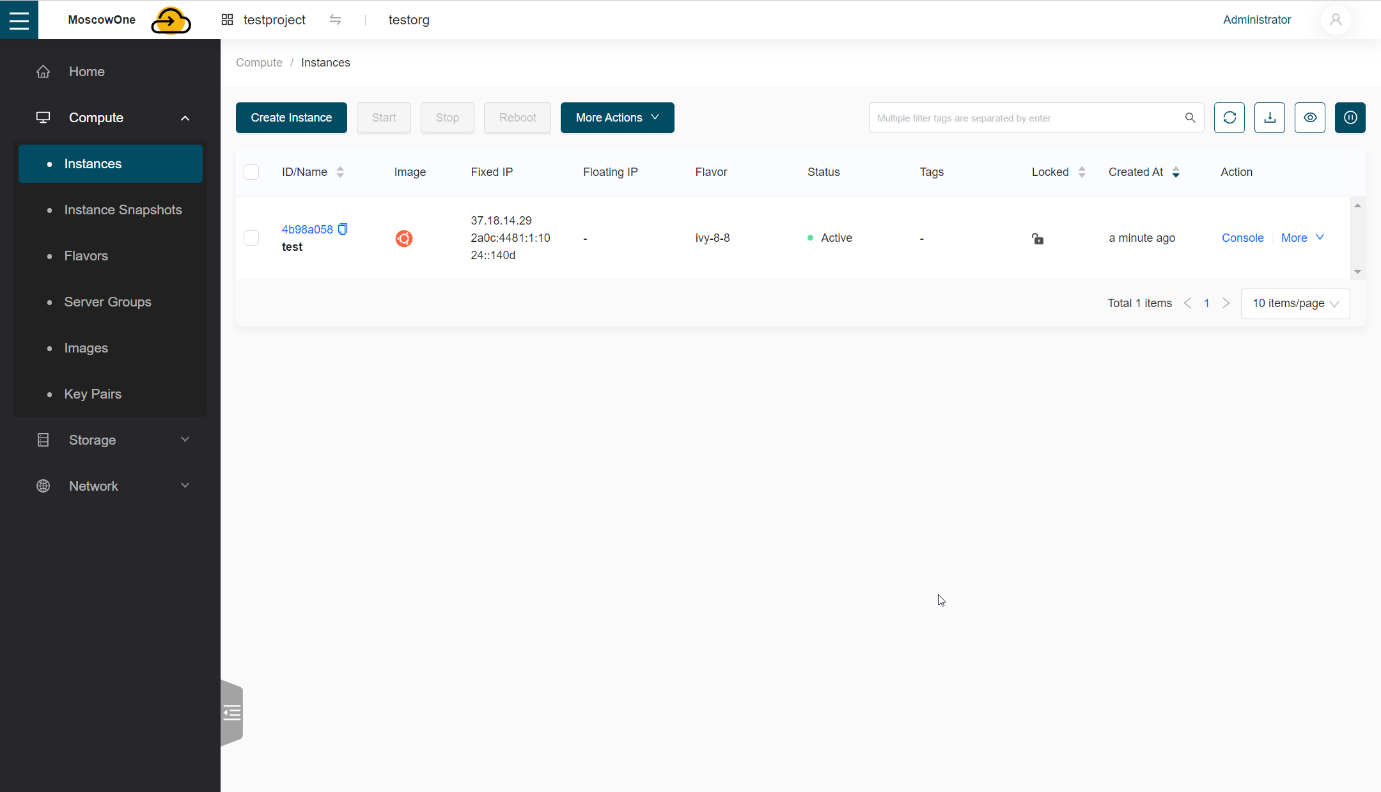
How to connect to the virtual machine (Linux, Windows)
You can connect to a Linux machine via console (for example, MobaXterm) over ssh *default user*@*machine ip*
Usernames for different systems:
Ubuntu — ubuntu
CentOS — cloud-user
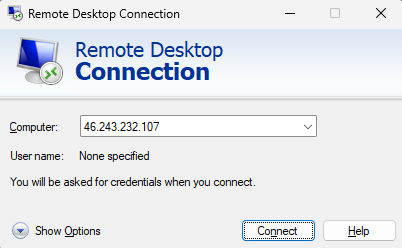
You can connect to a Windows machine via RDC (Remote Desktop Connection), by entering the machine address
Adding a new disk to an existing virtual machine (from creating the disk to configuring the volume inside the machine)
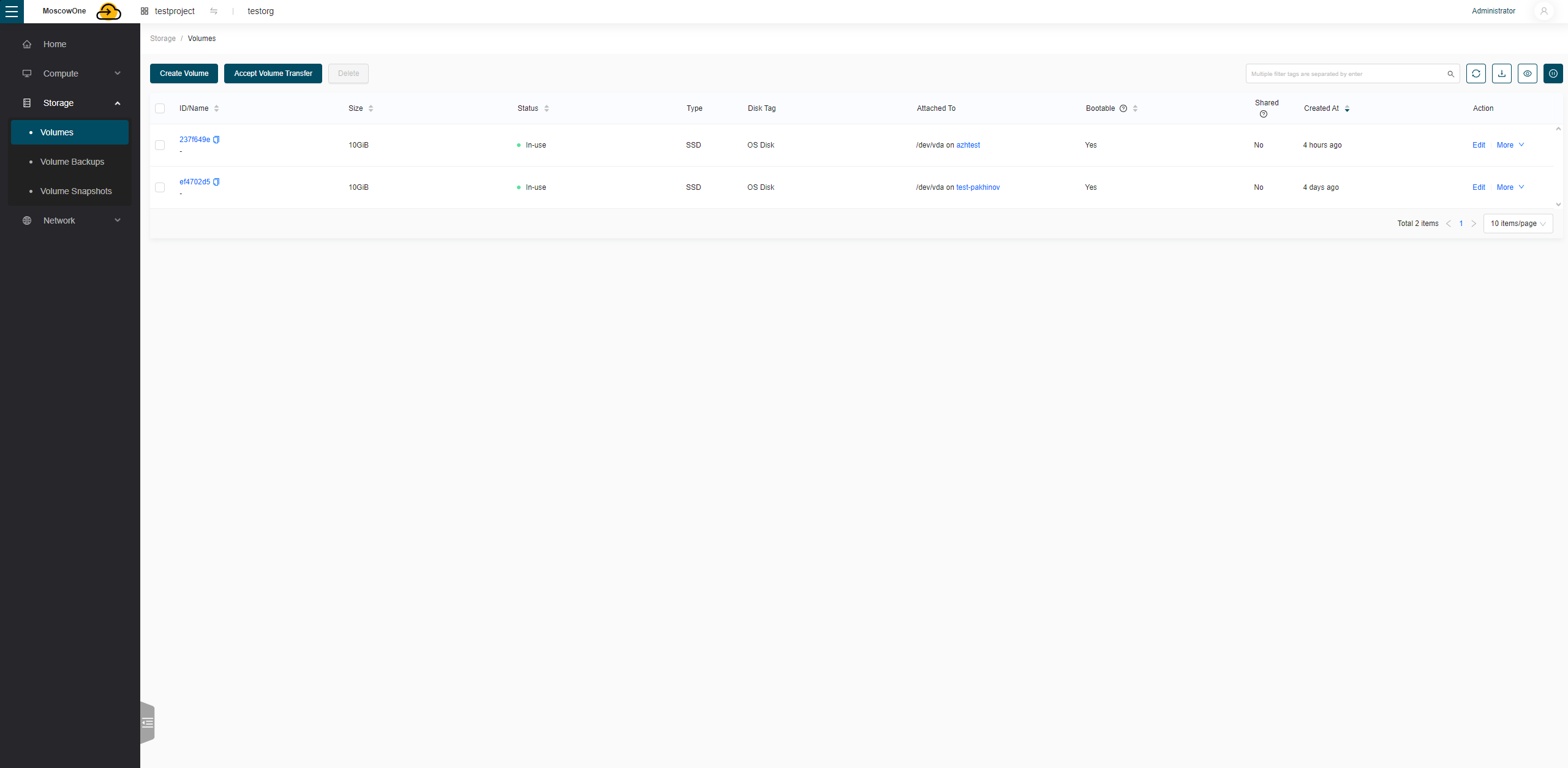
You can create a disk under Compute -> Volumes and click Create Volume
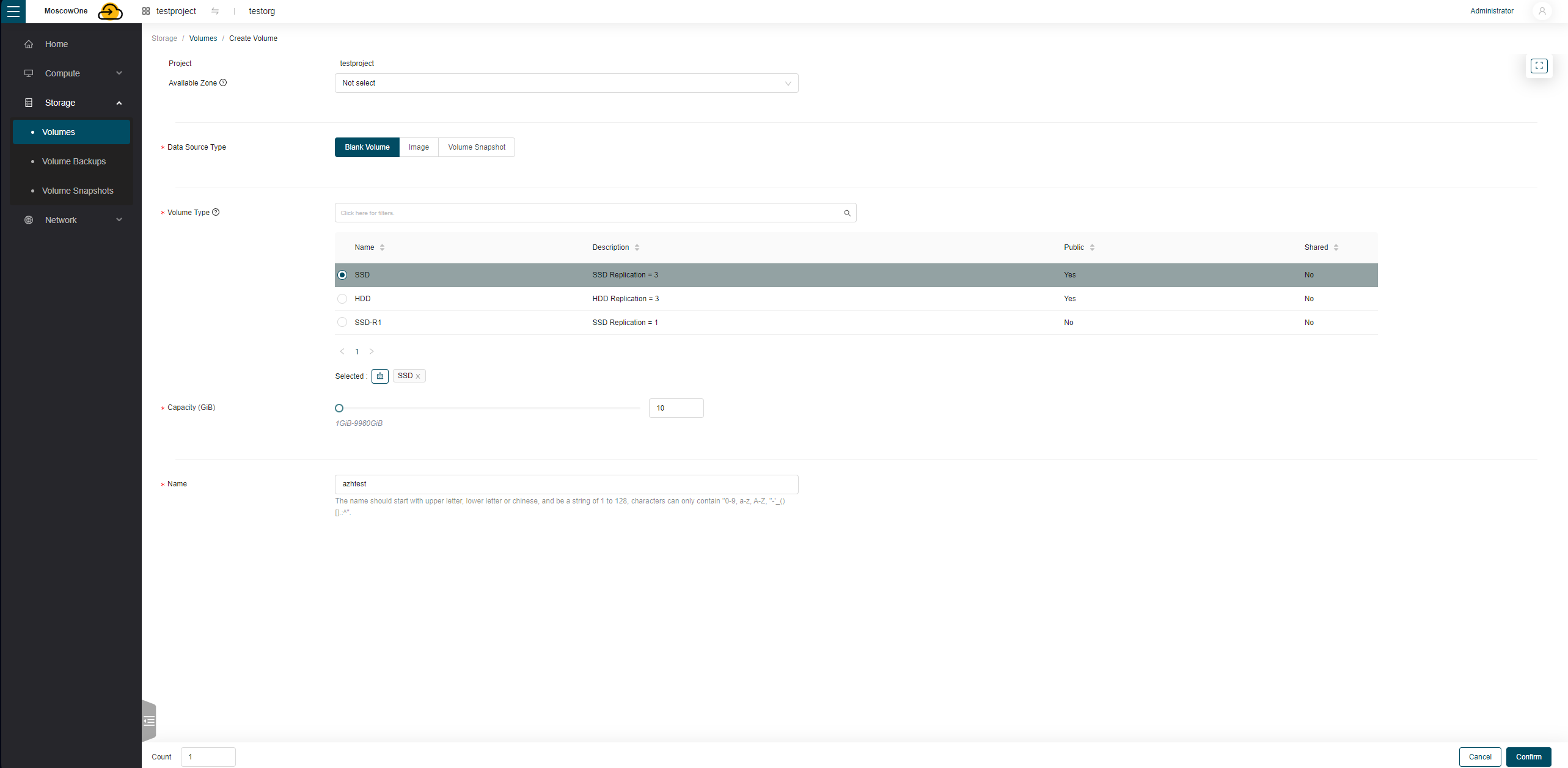
When creating a disk you need to specify its
1) Available Zone (always nova)
2) Whether to create an empty disk, create a bootable disk from an image, or from a snapshot of another volume
3) Disk type, SSD or HDD
4) Disk size
5) Disk name
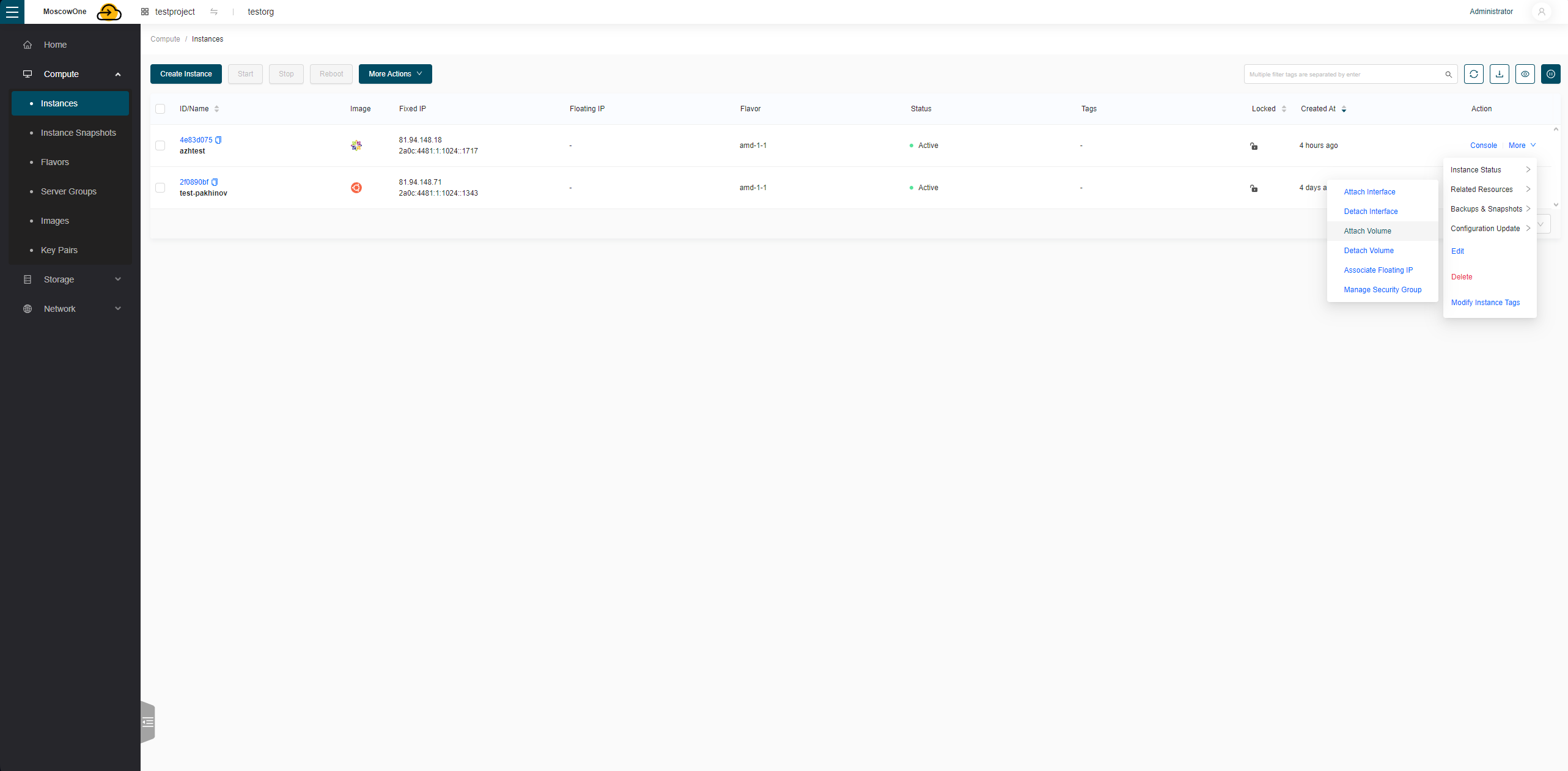
You can attach a volume via the machine's More -> Related Resources -> Attach Volume
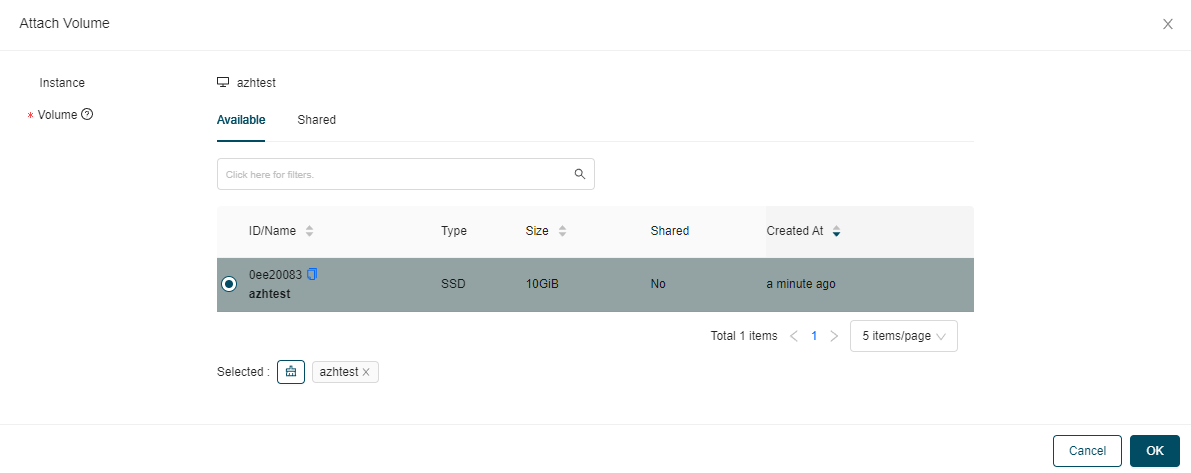
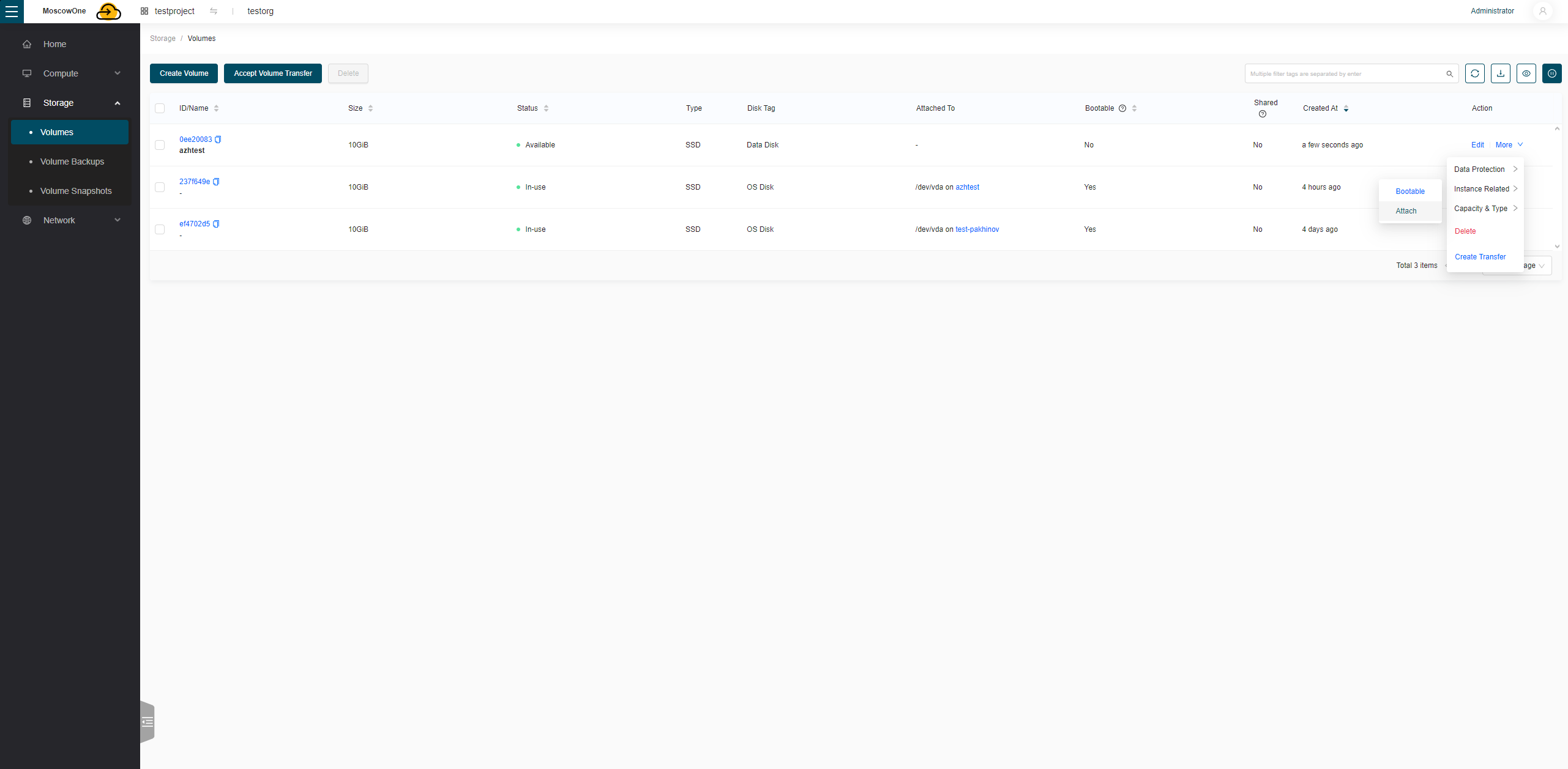
Or attach it to the machine via the volume itself, More -> Instance Related -> Attach, and select which VM to attach it to
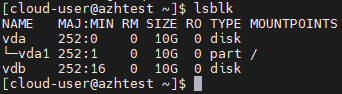
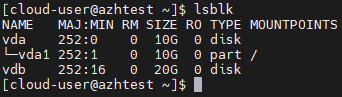
After rebooting the VM, the disk should be visible in the system
Increasing/decreasing a disk on an existing virtual machine (the main OS disk and an additional disk) (with volume configuration inside the machine)
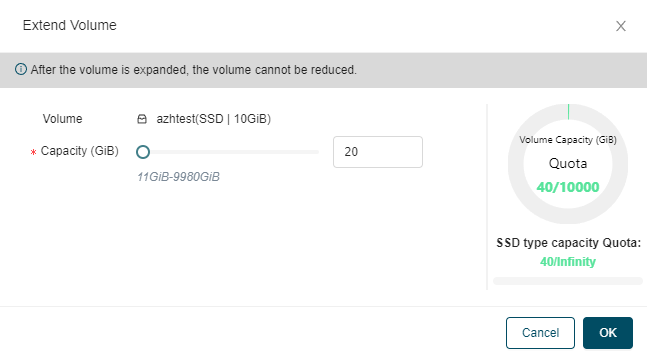
You can increase a volume by opening it, More -> Capacity & Type
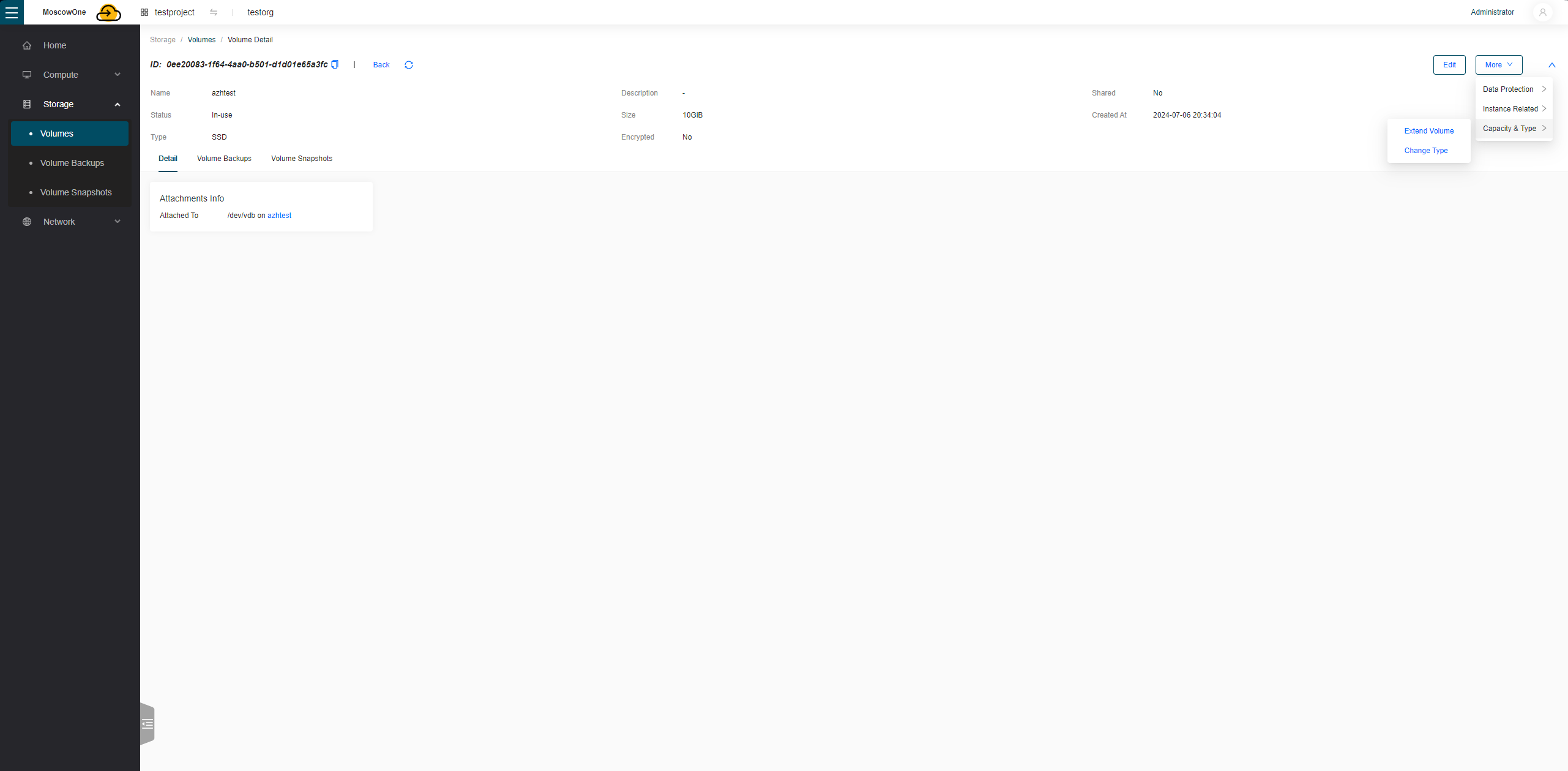
Then choose the size to increase it to
The size of existing disks can only be increased
Floating IP and routing configuration
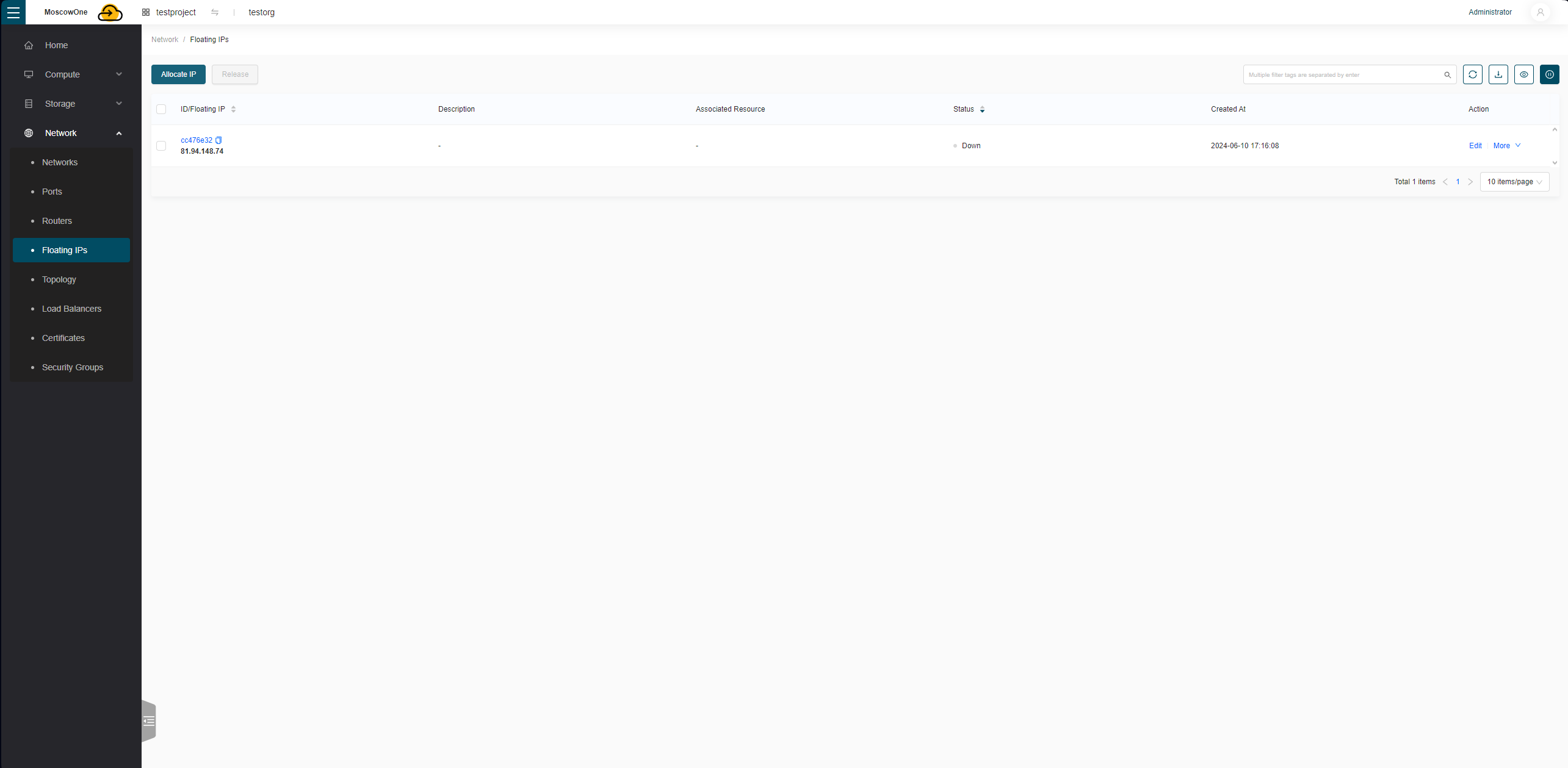
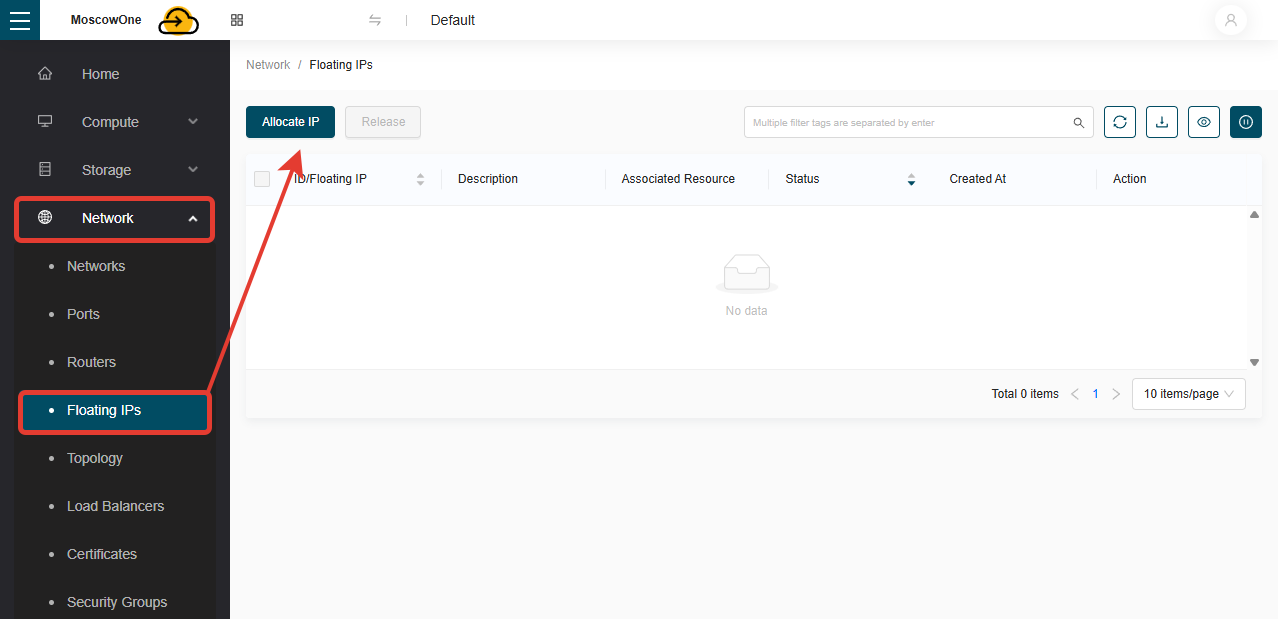
To create a Floating IP, go to the Network -> Floating IPs tab and click Allocate IP
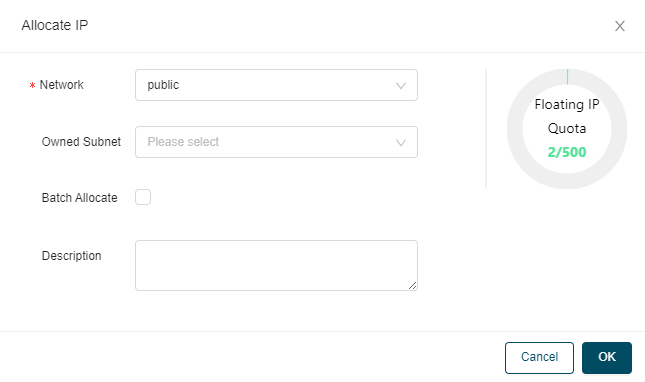
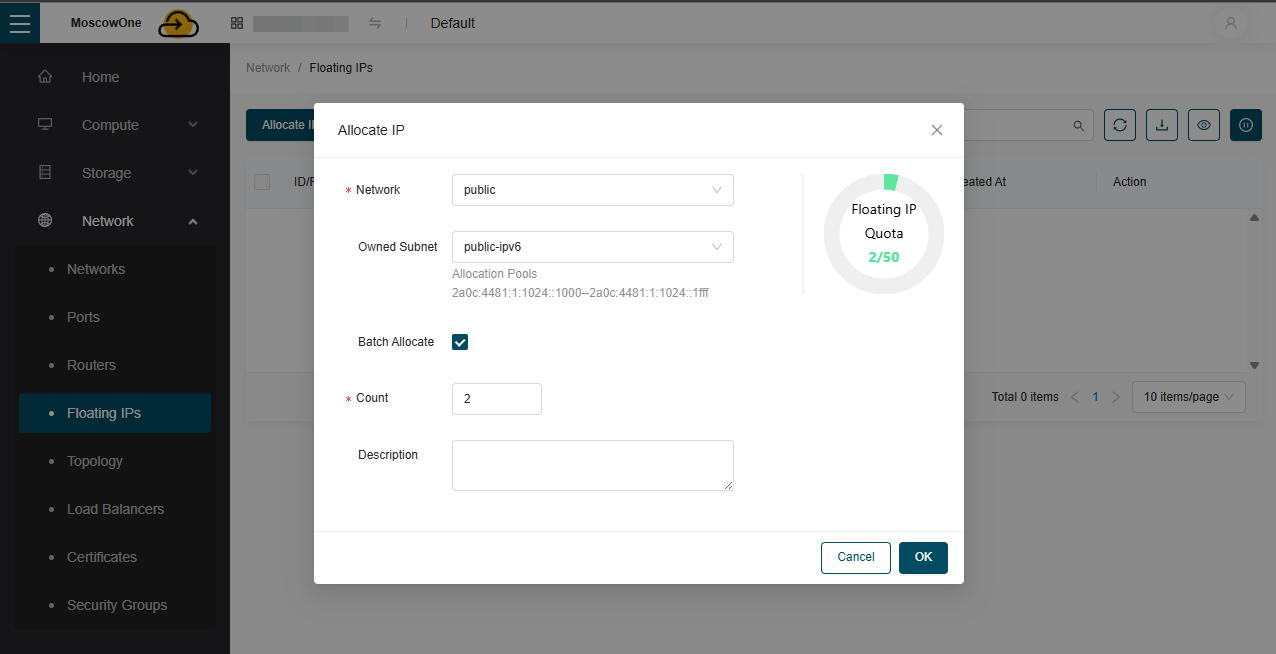
When creating the address, you can choose our public network; specifying a subnet is optional, as some may be taken
Changing the flavor for a created virtual machine
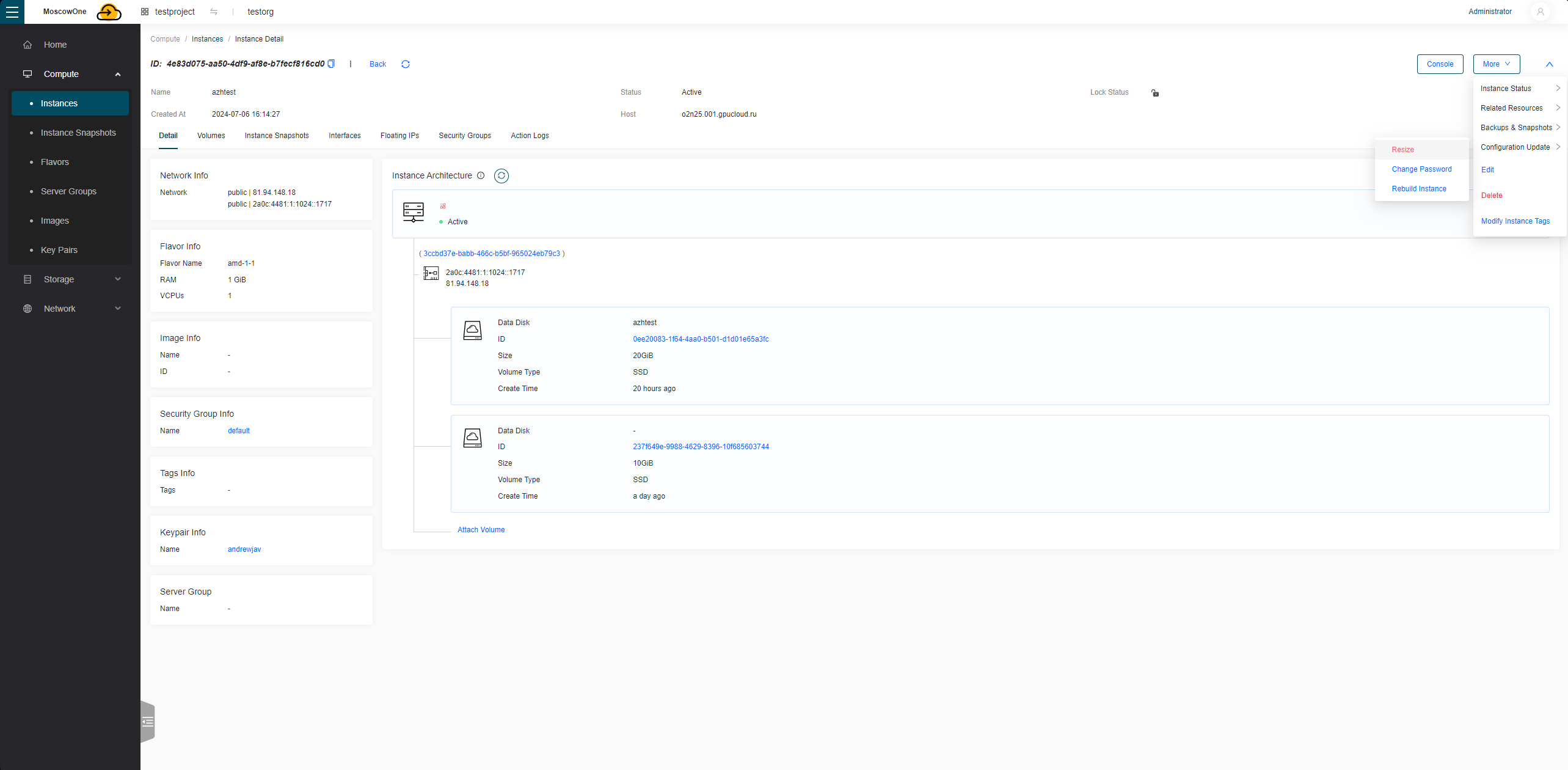
To change the configuration, select the option More -> Configuration Update -> Resize on the VM
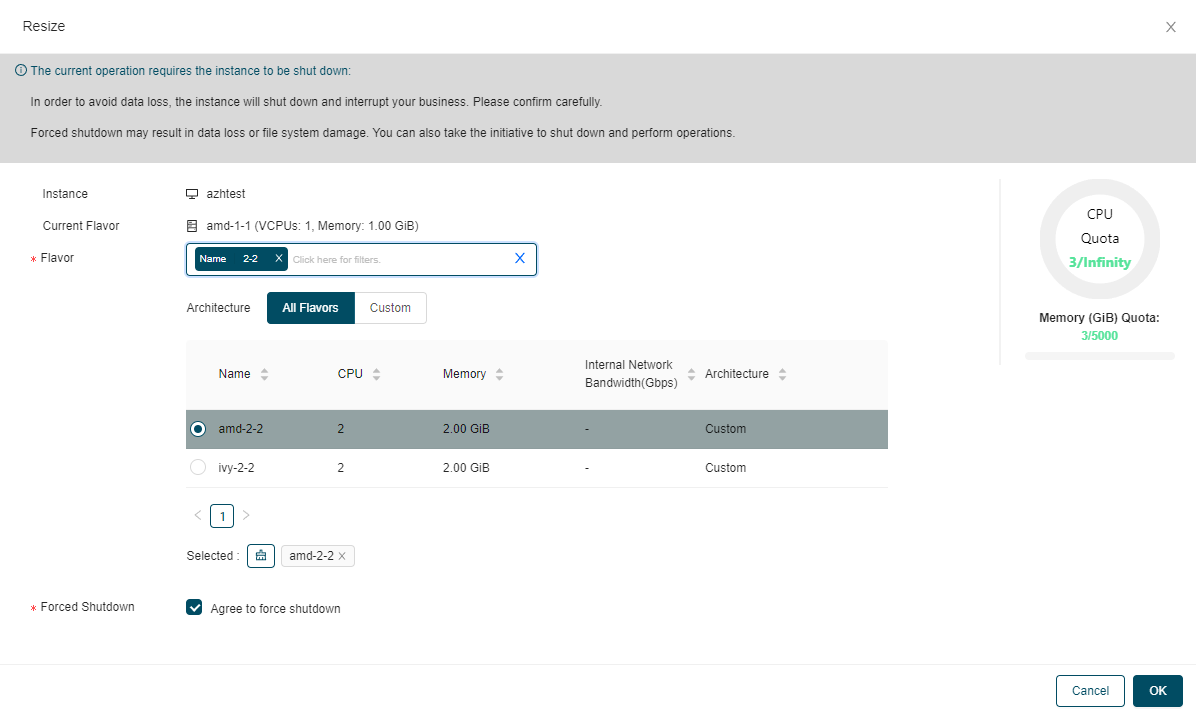
Then select the new flavor and confirm force shutdown
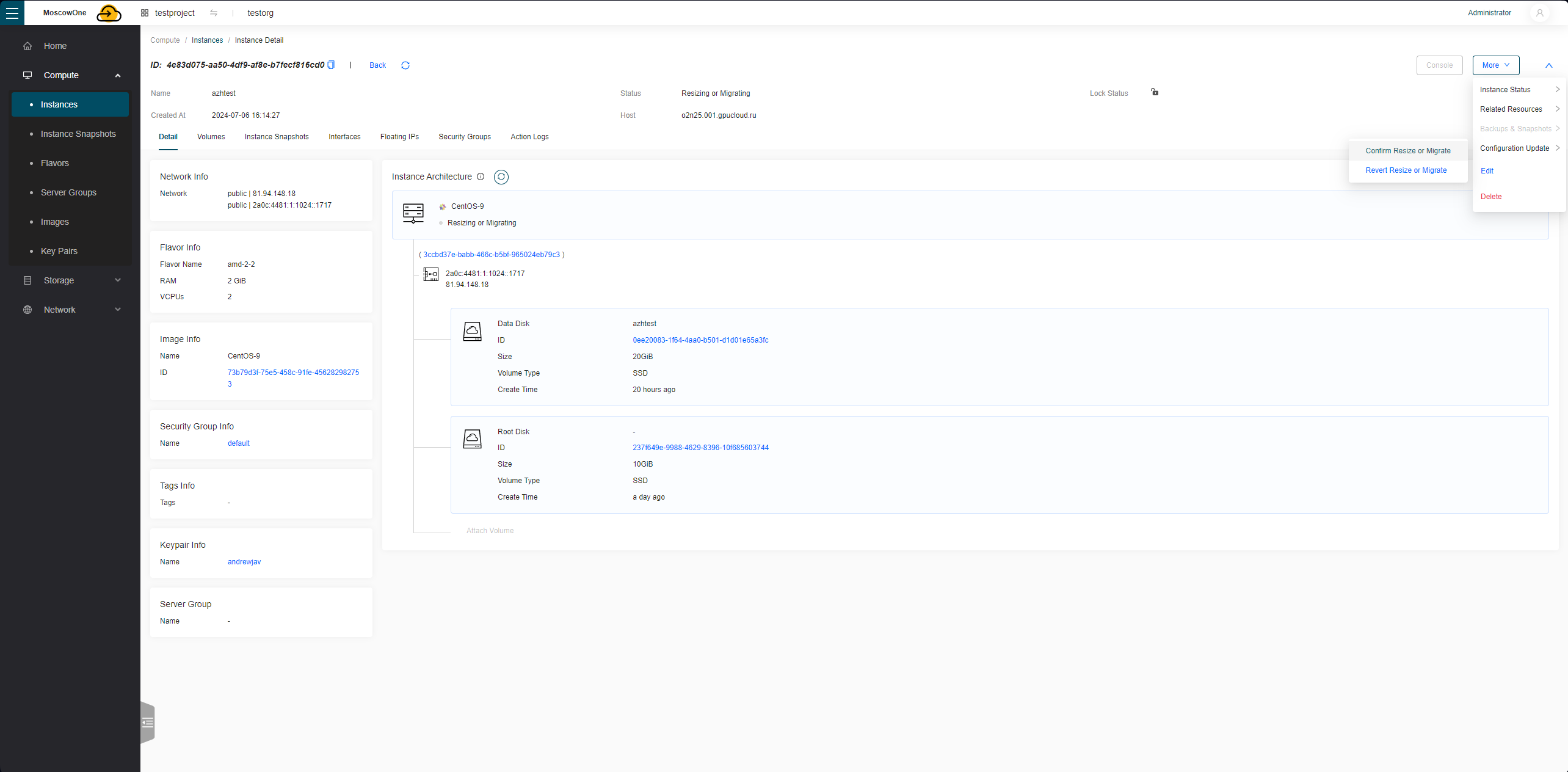
After some time, the Confirm Resize or Migrate option becomes available; clicking it changes the machine's configuration (the configuration change can also be reverted with the Revert Resize or Migrate button)
Adding a second network interface
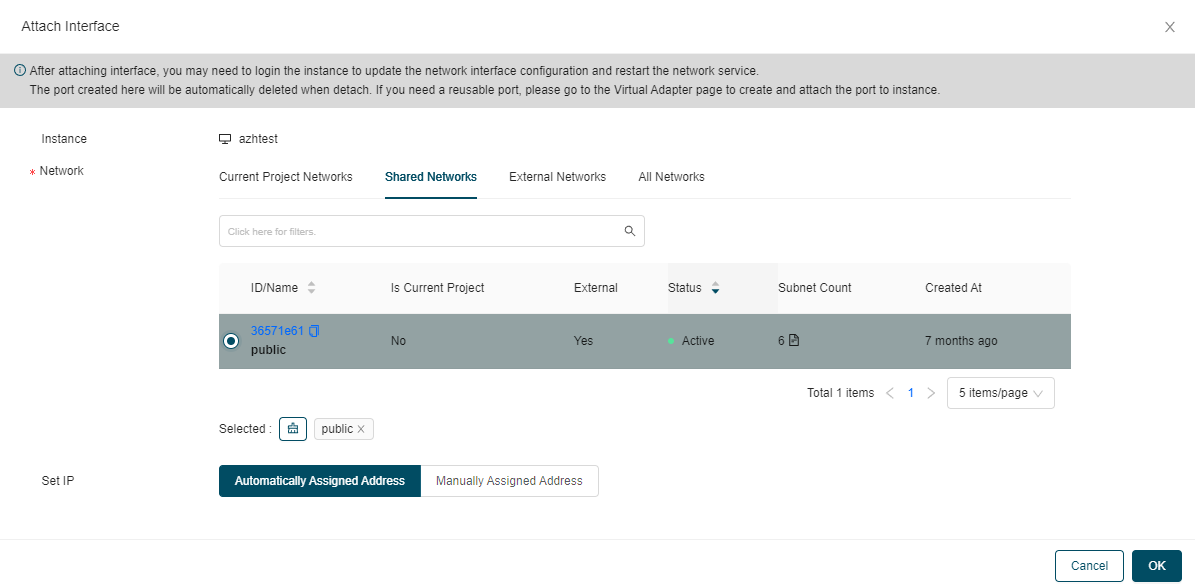
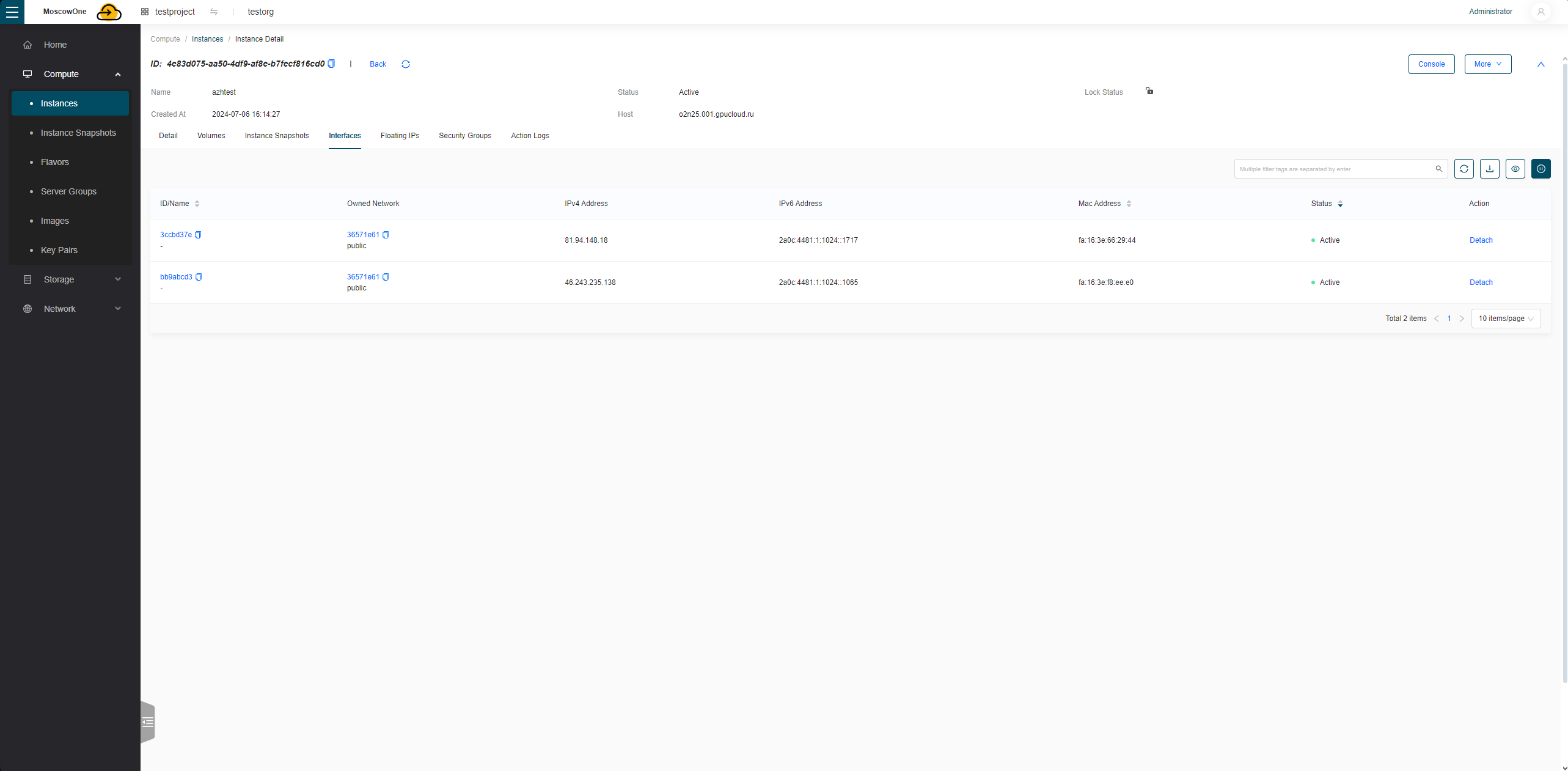
To add a network interface, select the option More -> Related Resources -> Attach Interface
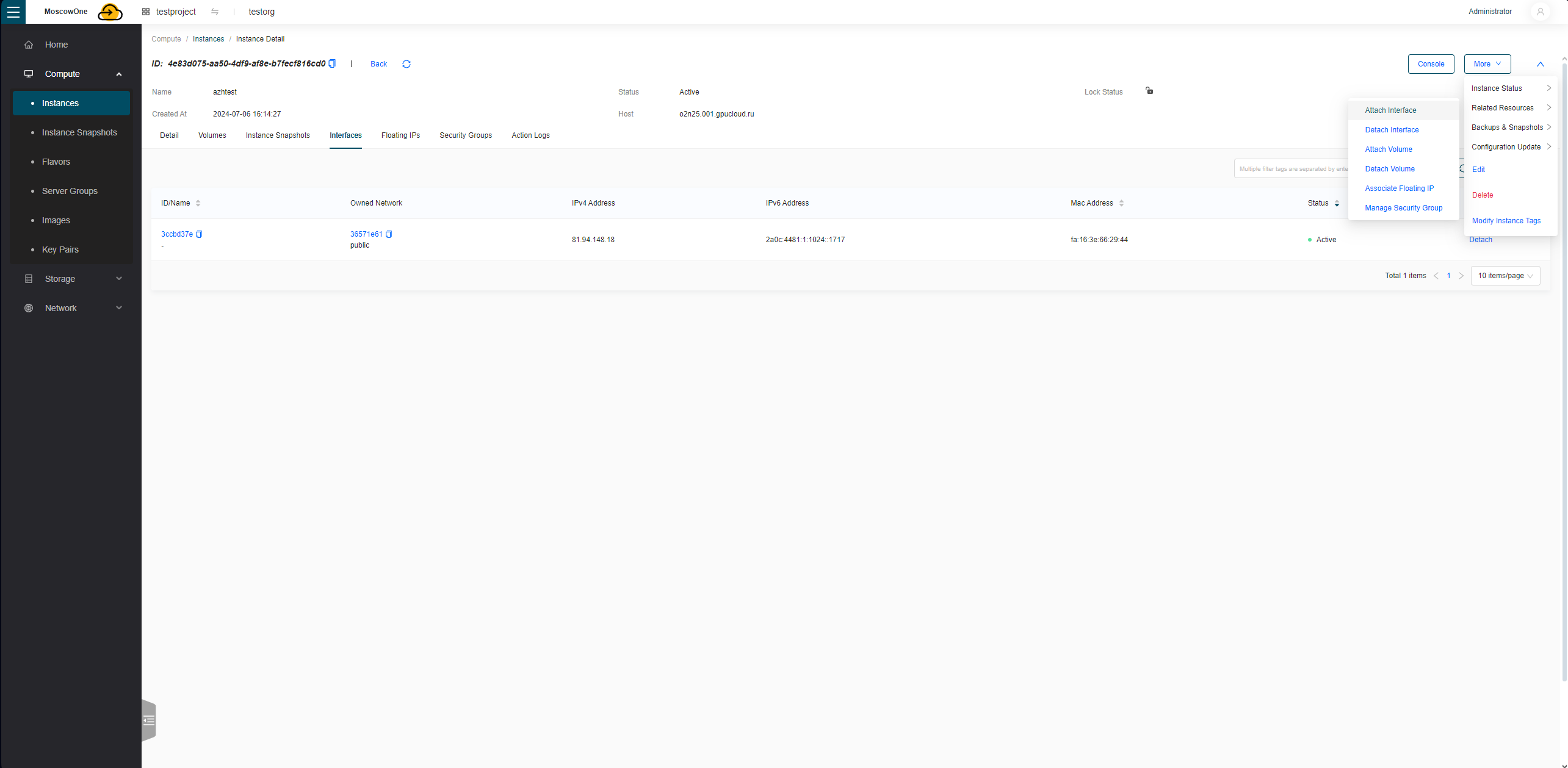
Then choose which network the address will be assigned from; the address can be assigned either automatically or manually
Shutting down a virtual machine
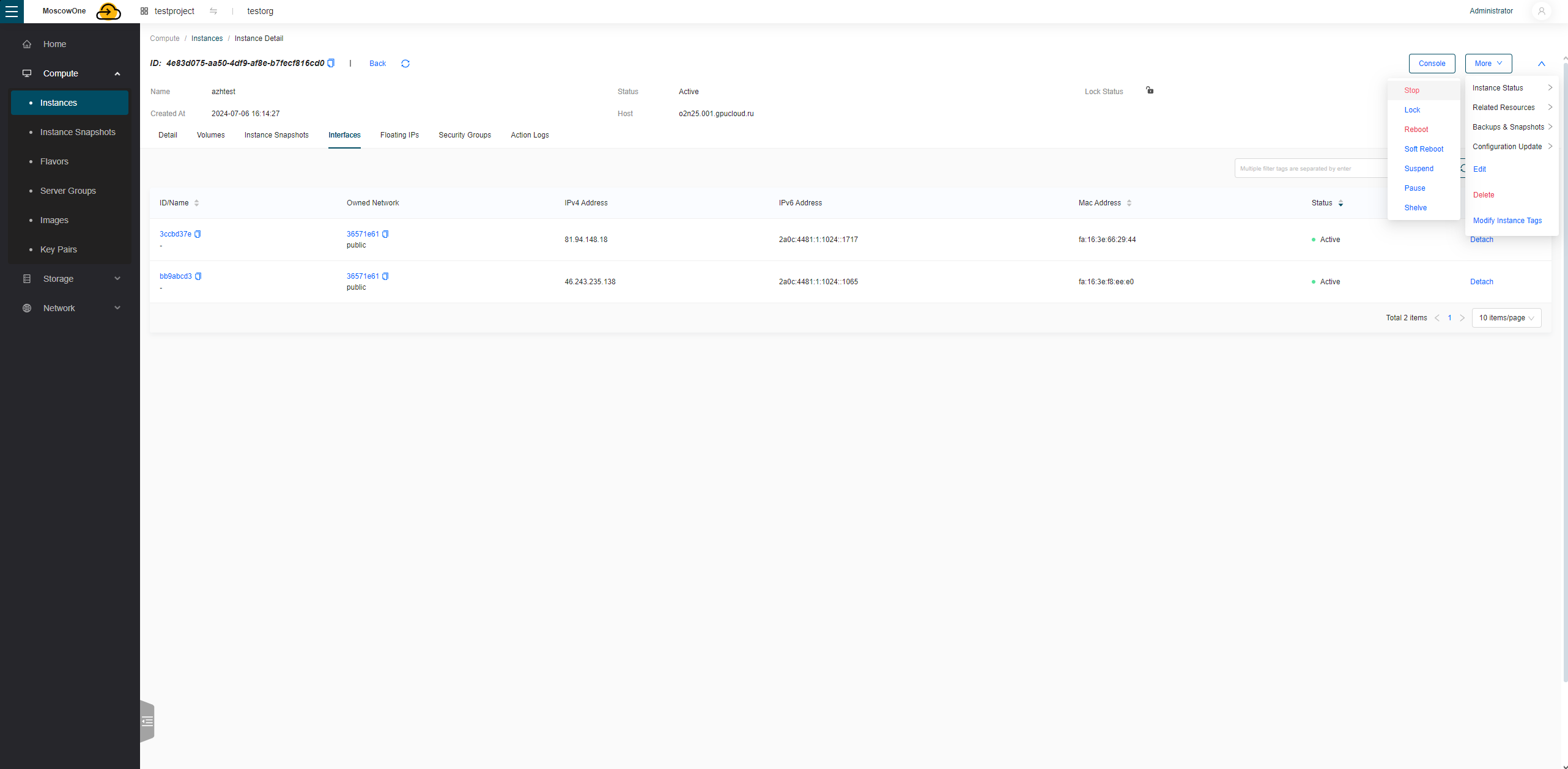
There are several options for shutting down a machine under More Instance Status
1) Stop — the machine will shut down, but its resources will continue to be billed
2) Shelve — all reservations are released, only the disk and IP are billed
Deleting a virtual machine
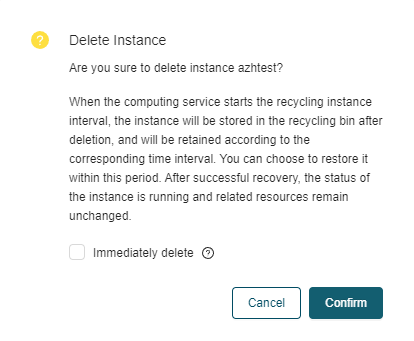
To delete a machine, select More -> Delete
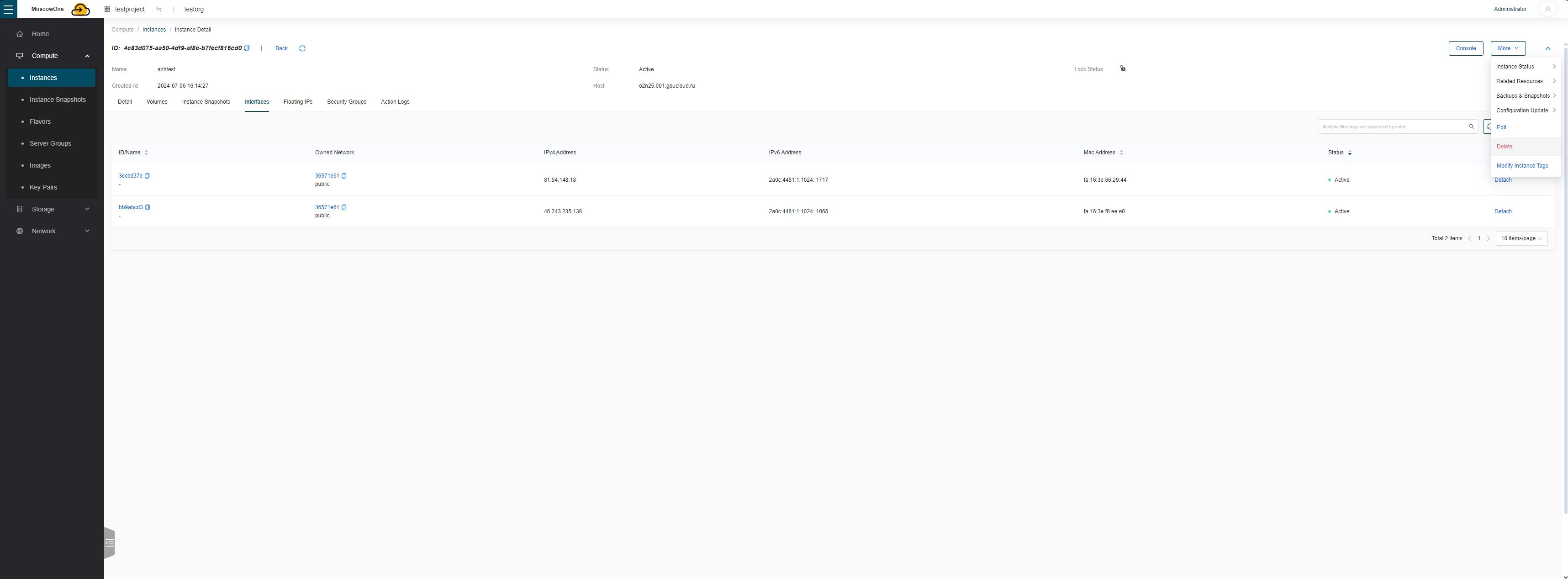
In the confirmation window there is an Immediately delete option; if enabled, all IPs, interfaces, disks, and other VM resources will also be deleted
Working with the Cloud via OpenStack CLI
Advantages of Using the CLI
- Speed and reproducibility. A script = one run instead of many clicks. The result is easy to repeat on another project.
- Automation. Integration into CI/CD, cron, Ansible/Terraform provisioning, post-deploy steps.
- Full feature set. The CLI usually gets new API keys and parameters first, long before they appear in the UI.
- Precise diagnostics. More fields in the output, convenient parsing (
-f json,-c columns) for tracing issues. - Scale. Batch operations on hundreds of VMs, ports, IPs, and volumes without straining your browser or your hands.
- Idempotency. Combinations like
openstack keypair show mykey || openstack keypair create ...allow safe repeated runs.
1. Installing the OpenStack CLI
Linux (Ubuntu/Debian)
Open a terminal.
Usually via Ctrl+Alt+T or the application menu (the “Terminal” icon).
Update the package list:
sudo apt update
Install pip (the Python package manager)
sudo apt install python3-pip -y
Update pip to the latest version:
pip3 install --upgrade pip
Install the OpenStack CLI
pip3 install python-openstackclient
Verify the installation:
openstack --version
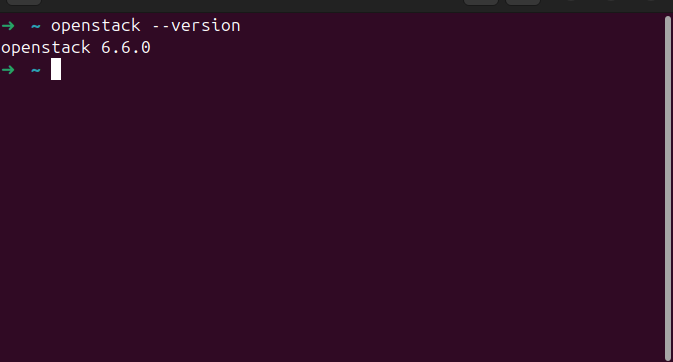
It should display a version number, for example: openstack 6.6.0
Windows
Installing Python 3
- Go to python.org.
- Click Download Python 3.x.x.
- Run the downloaded file.
- Check the box “Add Python to PATH”.
- Click Install Now and wait for it to finish.
Opening PowerShell
-
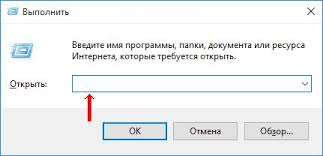
Press Win+R.
-
Type powershell and press Enter. The PowerShell window will open.
Installing the OpenStack CLI
In PowerShell, type:
pip install python-openstackclient
Verification
openstack --version
If the installation was successful, a version number will appear.
2. Obtaining the Configuration File (RC File)
- Go to the OpenStack website.
- Log in with your account.
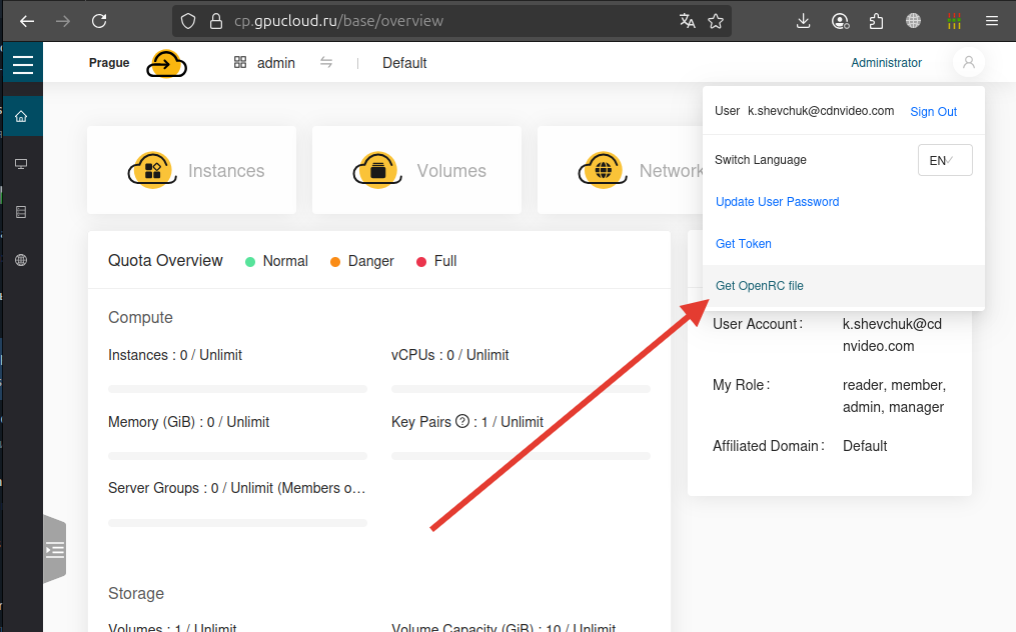
- In the top right corner, hover over the user icon.
-
Select Get OpenRC file.
-
Save the file — it will appear in your “Downloads” folder under the name openrc.sh.
3. Authorizing in the Cloud
In the terminal, go to the folder containing the RC file:
cd ~/path_to_openrc.sh
Run:
source openrc.sh
Enter your cloud panel password (the same one you use to log in to the website) when prompted.
Windows (PowerShell)
- Open openrc.sh in Notepad — you can either type notepad openrc.sh in PowerShell, or open it via File Explorer by selecting “Open with” -> Notepad.
- Find the variables OS_AUTH_URL, OS_USERNAME, etc.).
- In PowerShell, set them manually:
setx OS_AUTH_URL "https://cp.gpucloud.ru/api/openstack/moscowone/keystone/v3/"
setx OS_PROJECT_NAME "Enter your project name here"
setx OS_USERNAME "Enter your username here"
setx OS_PASSWORD "enter_your_openstack_password_here"
setx OS_USER_DOMAIN_NAME "Enter the domain you use to log in to the website"
setx OS_PROJECT_DOMAIN_NAME "Enter the domain you use to log in to the website"
Close PowerShell and reopen it for the settings to take effect.
4. First Commands
-
Check access:
openstack token issue
If the password is incorrect, or there is an error in the parameters, you will see:
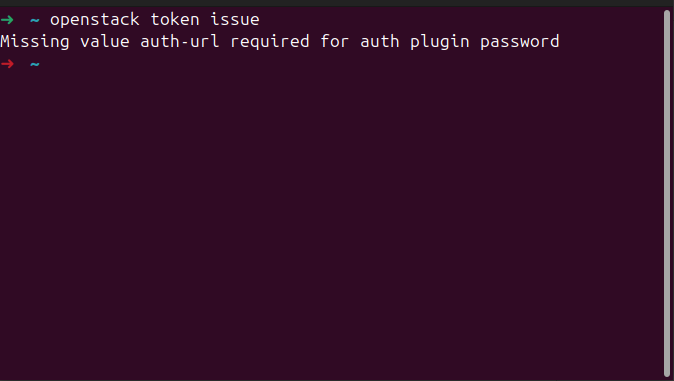
And here is what you will see if everything was entered correctly:
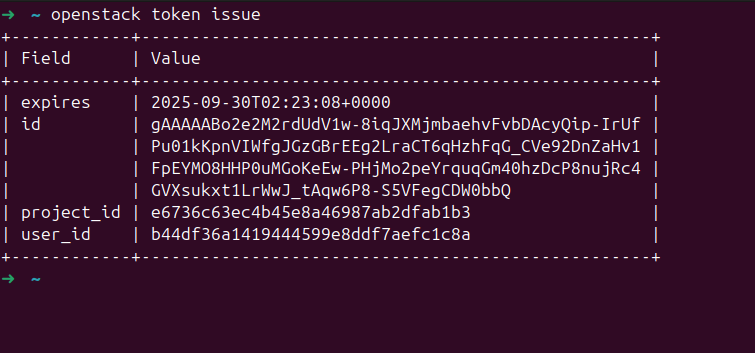
-
List of virtual machines:
openstack server list
5. Creating a Virtual Machine
View the resource templates; the name usually indicates:
“processor_brand–number_of_cores–amount_of_RAM_GB”
examples: ice-2-2, amd-1-4, intel-4-16
openstack flavor list
View the images (different types of operating systems):
openstack image list
Create a VM:
openstack server create --flavor amd-1-1 --image ubuntu-22.04 \ --nic net-id=<network_ID> --security-group default \ --key-name mykey vm-test
6. Working with the Network
-
List of networks:
openstack network list -
Creating a network:
openstack network create mynet -
Creating a subnet:
openstack subnet create --network mynet \ --subnet-range 192.168.100.0/24 mysubnet -
Creating a router:
openstack router create myrouter openstack router add subnet myrouter mysubnet
7. Working with SSH Keys
-
Add a key:
openstack keypair create --public-key ~/.ssh/id_rsa.pub mykey -
List of keys:
openstack keypair list
8. Working with Disks and Object Storage
-
Creating a volume:
openstack volume create --size 10 myvolume -
Attach a volume to a VM:
openstack server add volume vm-test myvolume -
Creating a container:
openstack container create mycontainer -
Uploading an object:
openstack object create mycontainer file.txt -
List of objects:
openstack object list mycontainer
OpenStack Network and Security Management
Introduction to Security Groups
A Security Group is a set of firewall rules that control incoming and outgoing VM traffic. Each rule specifies:
- Protocol (TCP, UDP, ICMP, or all)
- Port or port range
- Source/Destination (IP address or IP address pool)
- Direction (ingress/egress)
By default, when a VM is created it is assigned the default SG, which allows all incoming and outgoing traffic.
Creating a Security Group
Via the Skyline panel
-
Go to Network -> Security Groups
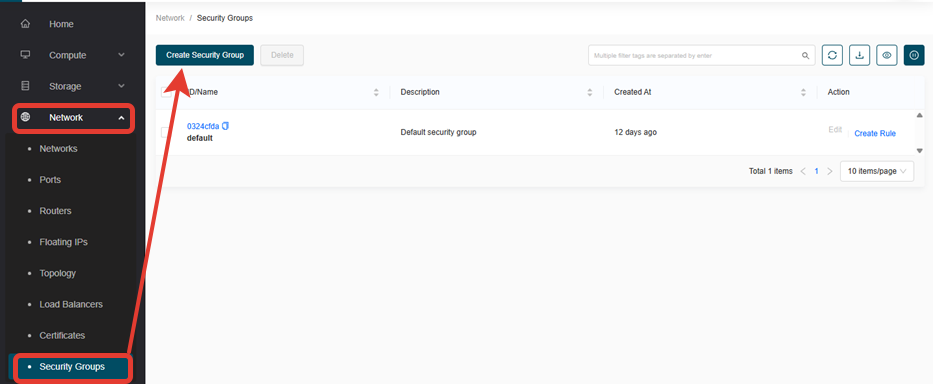
-
Click the Create Security Group
- Fill in the fields:
- Name: test-sg (any name)
- Description: SG for server (any name)
-
Click Create Security Group
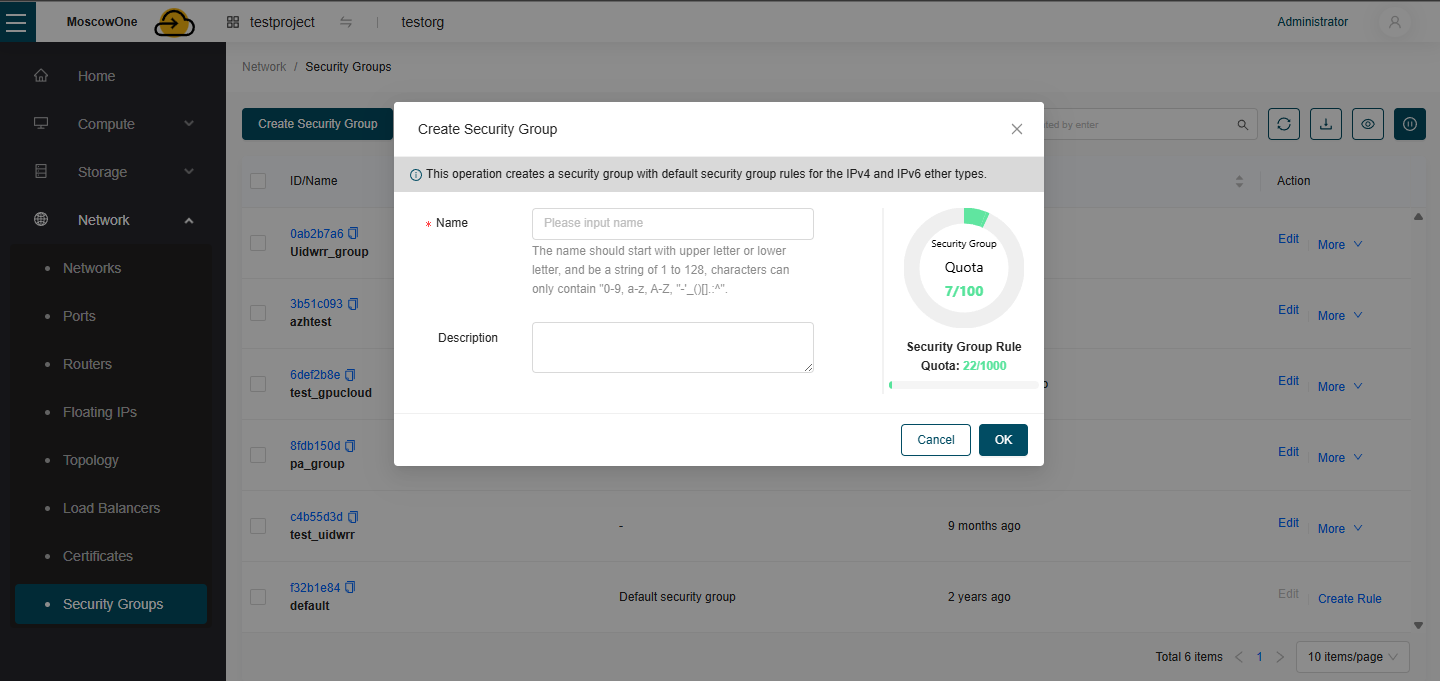
Adding Rules to a Security Group
After creating the SG, you need to add rules.
Add a rule for SSH (TCP 22)
-
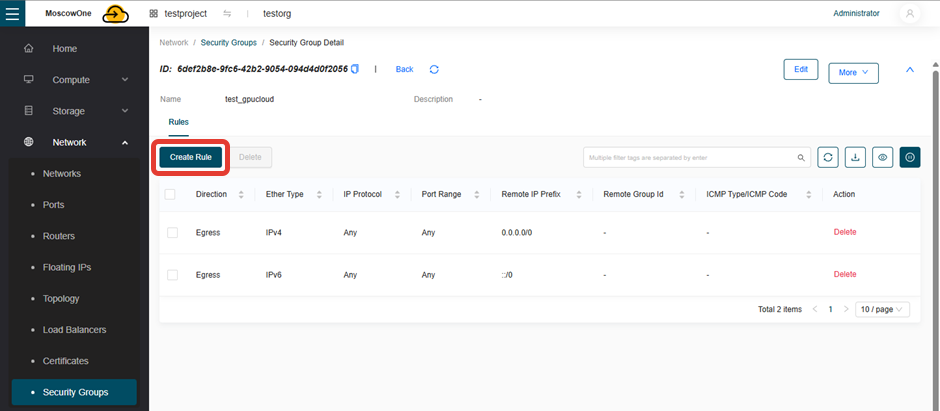
Open the SG you just created (click its name)
-
The Rules tab -> click Create Rule
- Fill in:
- Protocol: Custom TCP Rule
- Direction: Ingress
- Ether Type: IPv4
- Port Type: Custom
- Port/Port Range: 22
- Remote Type: CIDR
- Remote: 0.0.0.0/0 (allow all) or a specific IP (for example, 203.0.113.50/28)
- Click Add
In this case we will get a rule allowing incoming TCP traffic to the VM over IPv4, on port 22 for IPs from the pool 203.0.113.50-203.0.113.65
Important: By default (the “default” Security Group), all outgoing and incoming connections (Egress/Ingress) are allowed. If you need to restrict incoming or outgoing traffic, add your own rules.
Adding a Security Group to a VM
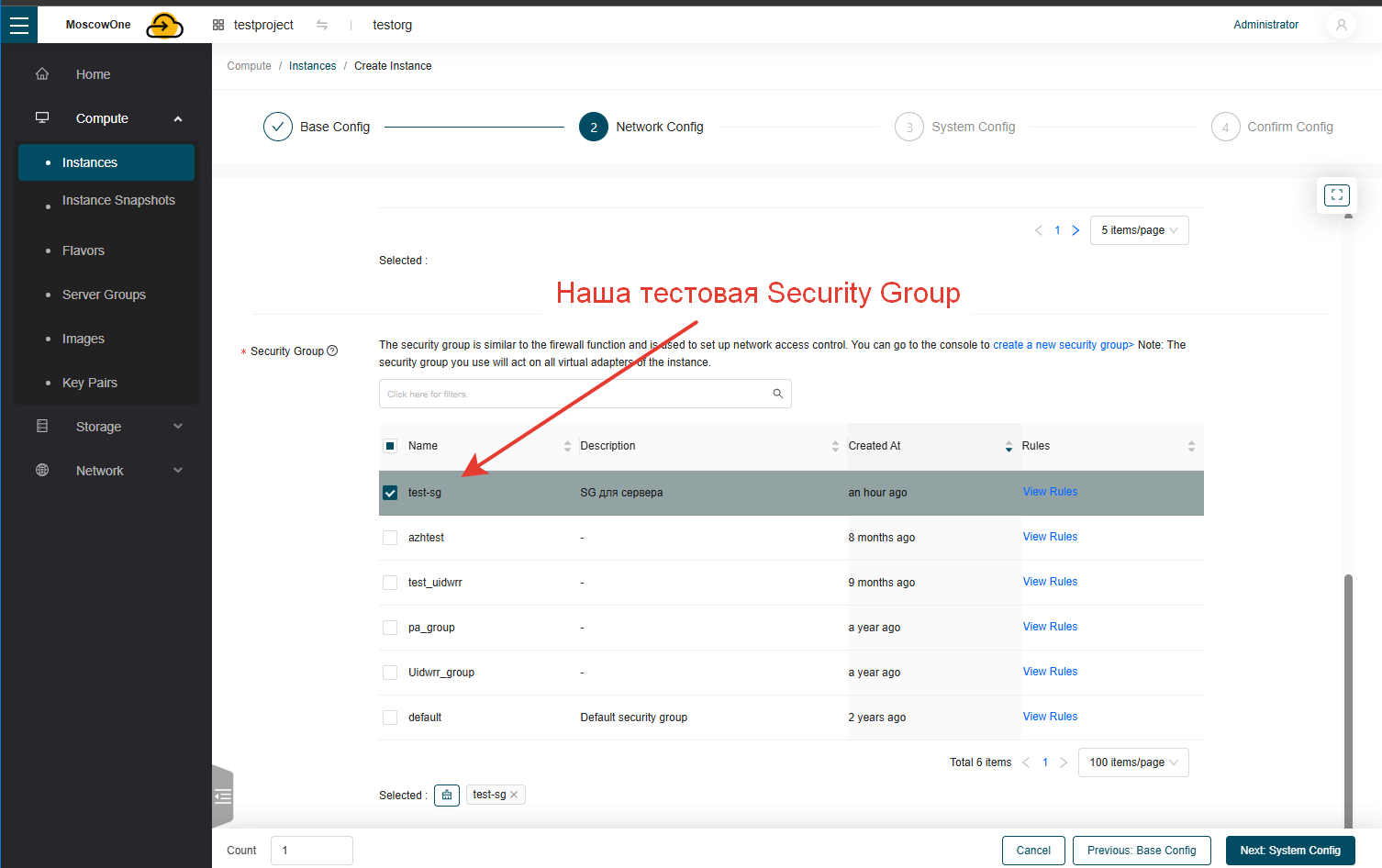
When creating a VM
-
At the Network selection step, choose the desired SG from the list
For an already created VM
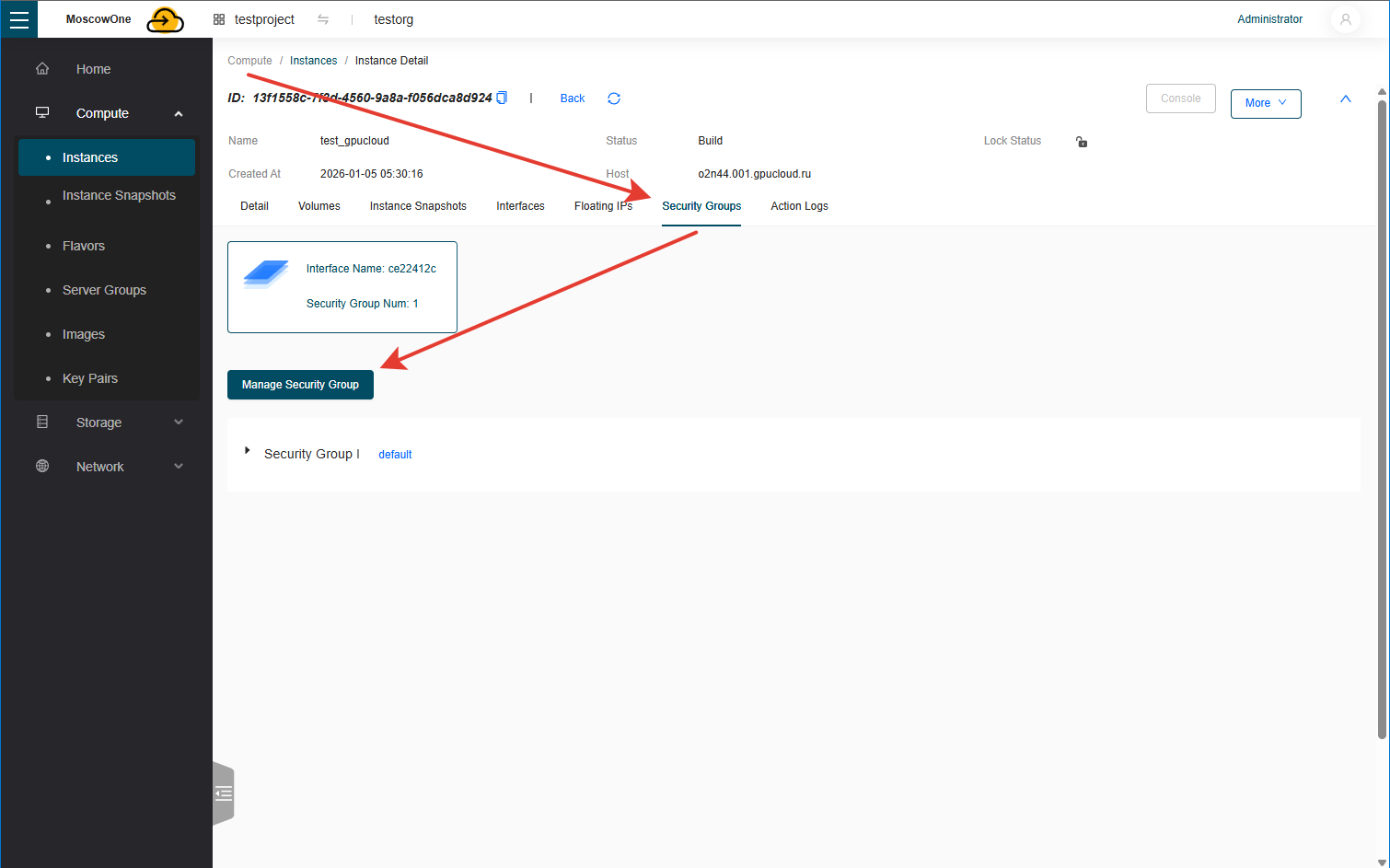
- Go to Compute -> Instances
- Find your VM and click its name
- The Security Groups
-
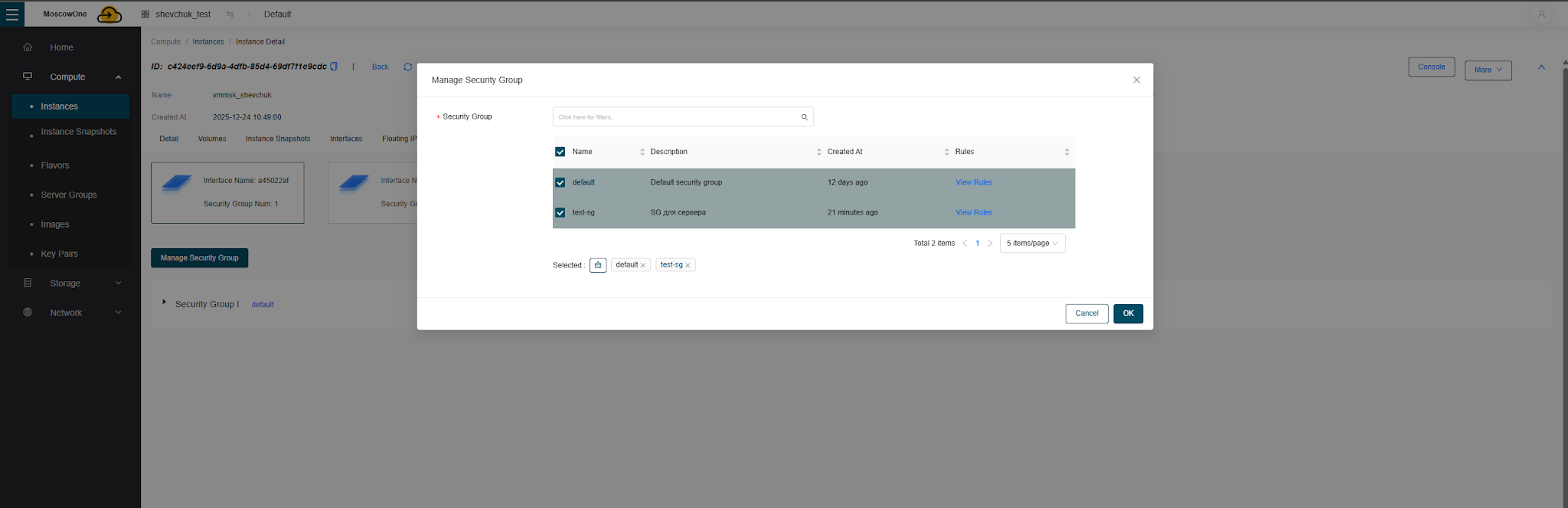
Click Manage Security Groups
-
Select the desired SGs from the list.
-
Click Ok.
Adding a Floating IP
A Floating IP is a public IP address that can be dynamically attached to a VM.
Allocating a Floating IP
- Go to Network -> Floating IPs
-
Click Allocate IP to Project
-
Select Pool: public (also in other regions)
Owned Subnet: you can choose IPv6, or leave it unchanged, in which case one of the free IPv4 addresses will be assigned
Batch Allocate: when this option is enabled, you can create the required number of Floating IPs at once.
-
Click Ok
Attaching a Floating IP to a VM
-
Creating a router
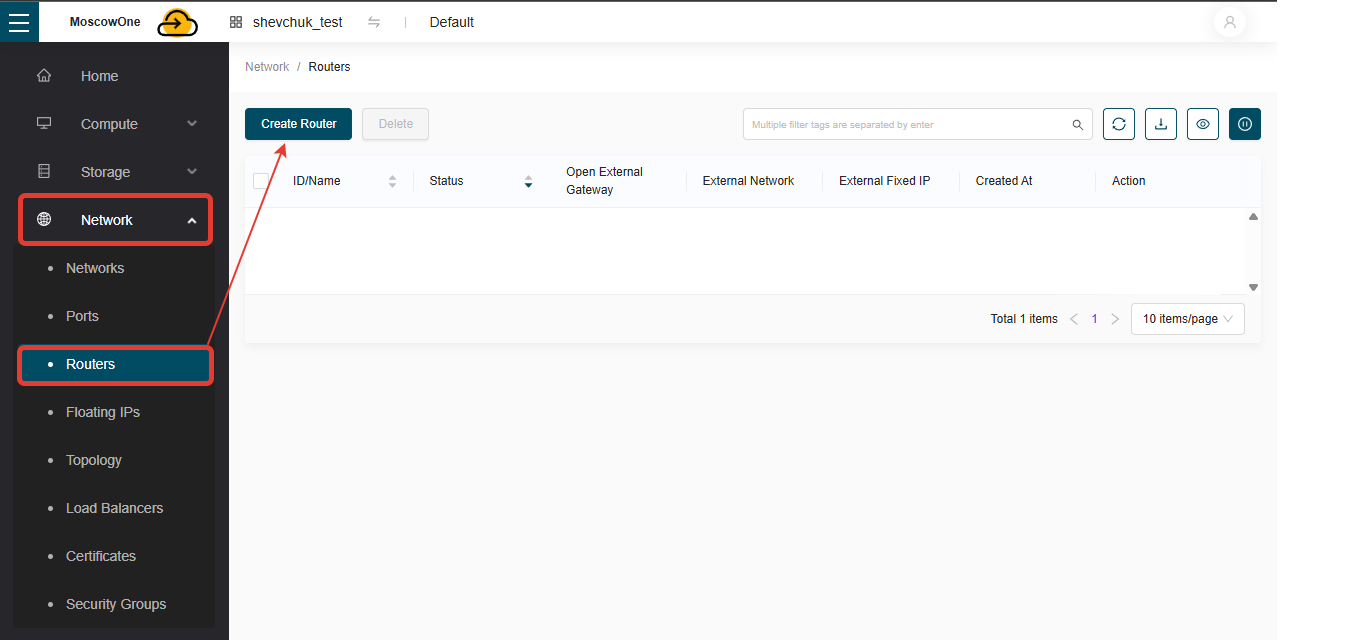
Network -> Routers -> Create Router
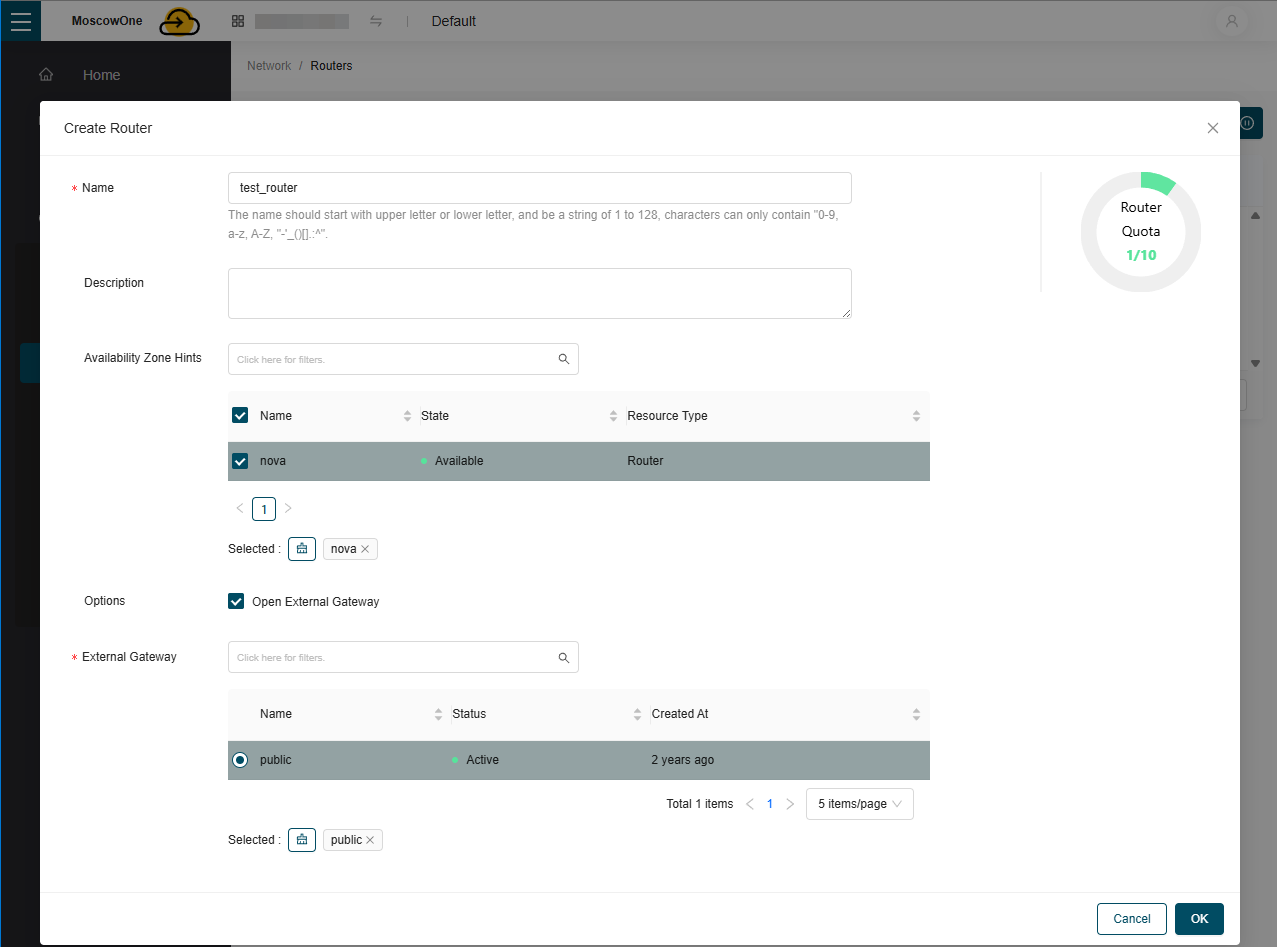
Name: the name of your router
Availability Zone Hints: nova (required!)
Options: Open External Gateway (required!)
External Gateway: public (only this one)
-
Click Ok
-
You need to create a network and subnet Network -> Networks -> Create Network
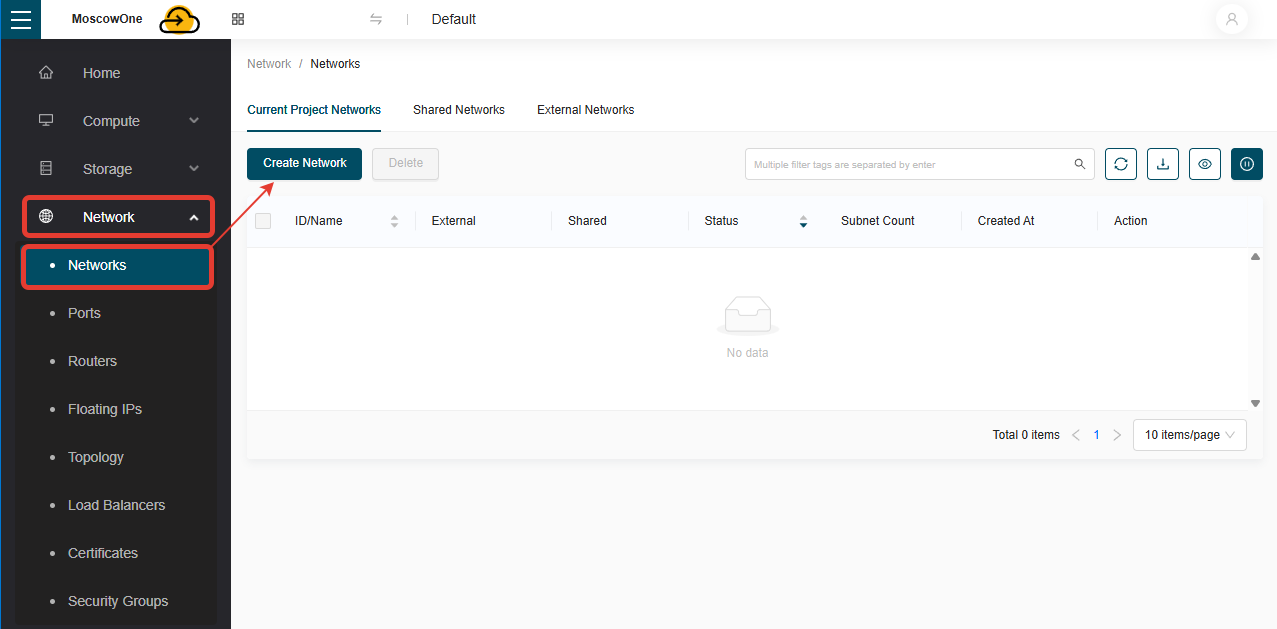
-
Fill in the fields:
Name: test_net (any name for your network)
Description: Your description for this network (optional)
Available Zone: nova (network active)
Create Subnet: ✅ (a subnet must be created)
Subnet Name: test_subnet (any name for your subnet)
IP Version: ipv4 / ipv6
CIDR: 10.0.0.0/8, 172.16.0.0/12, 192.168.0.0/16 (you can specify other subnet masks, for example /24, but the pool must be from the local address ranges listed, meaning if you specify an external IP, for example 78.135.124.12, the subnet will not work)
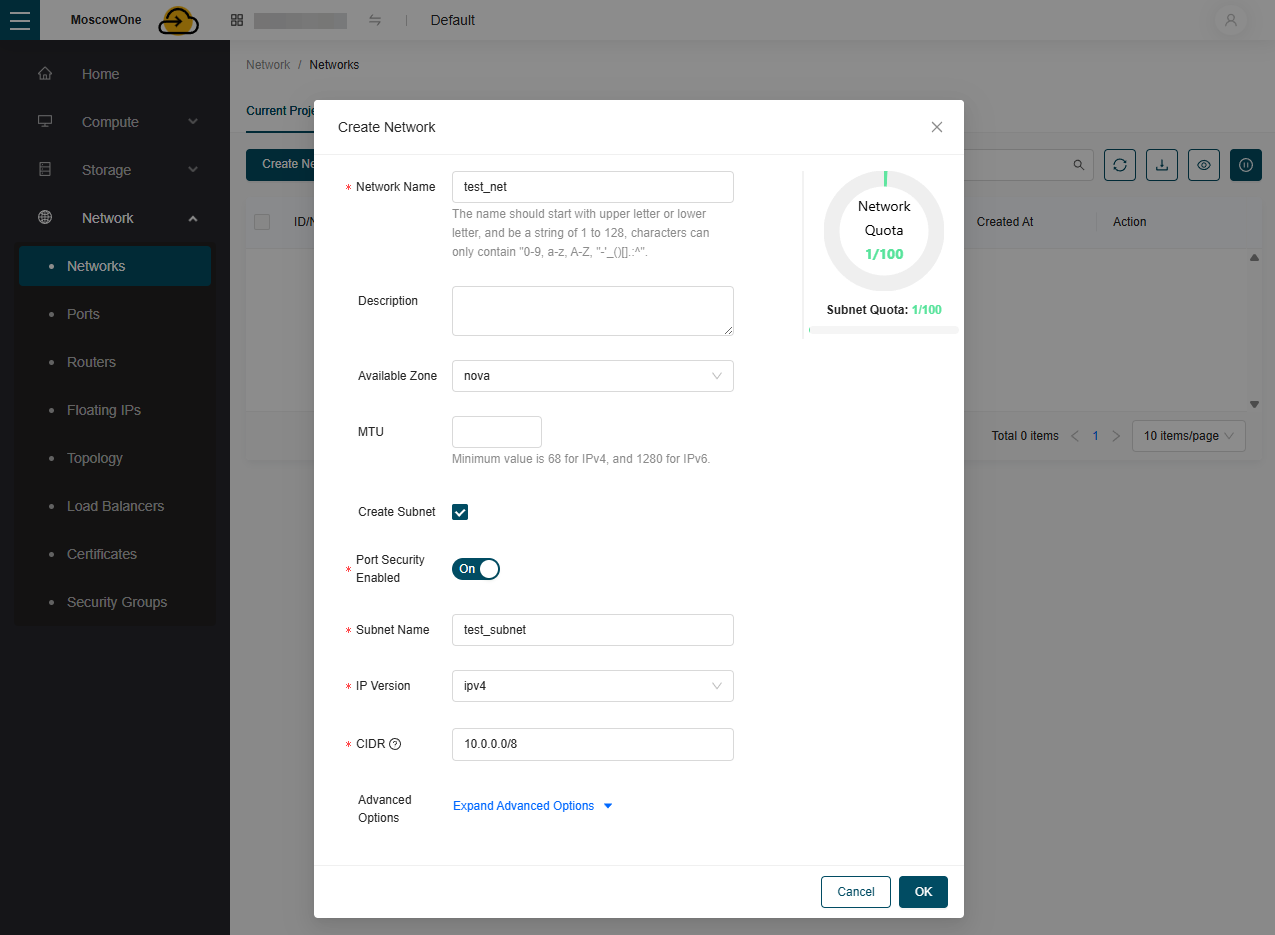
-
Attaching the subnet to the router Network -> Routers -> Your router -> More -> Connect Subnet
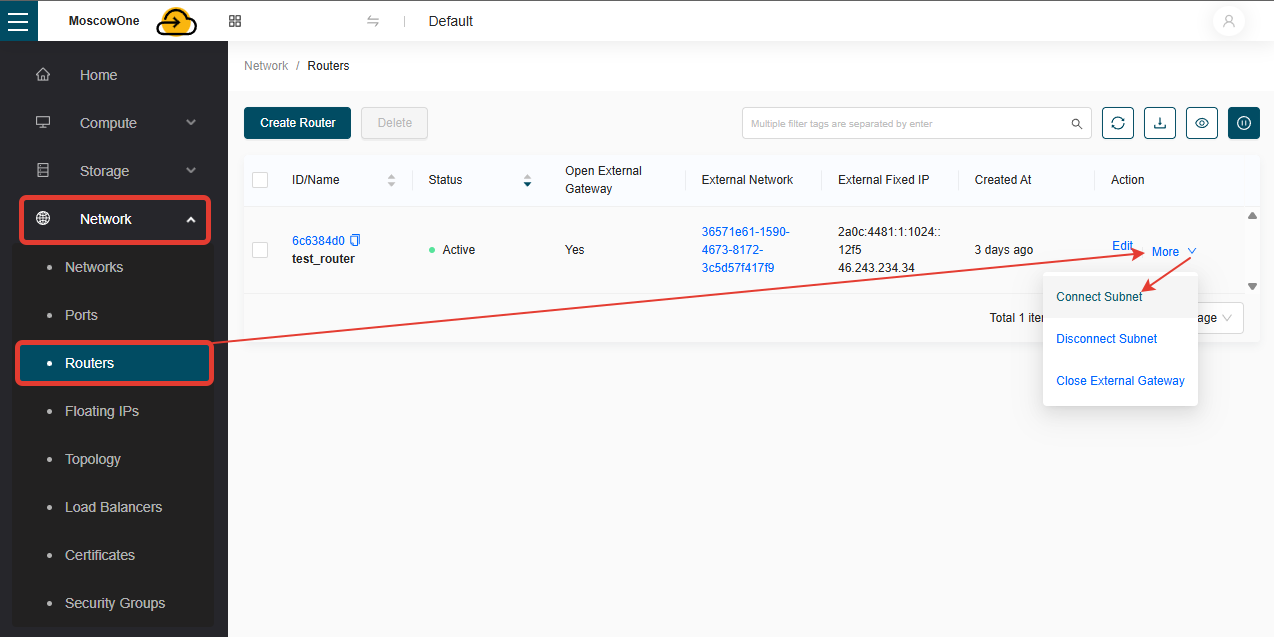
Select your network and subnet
Click OK
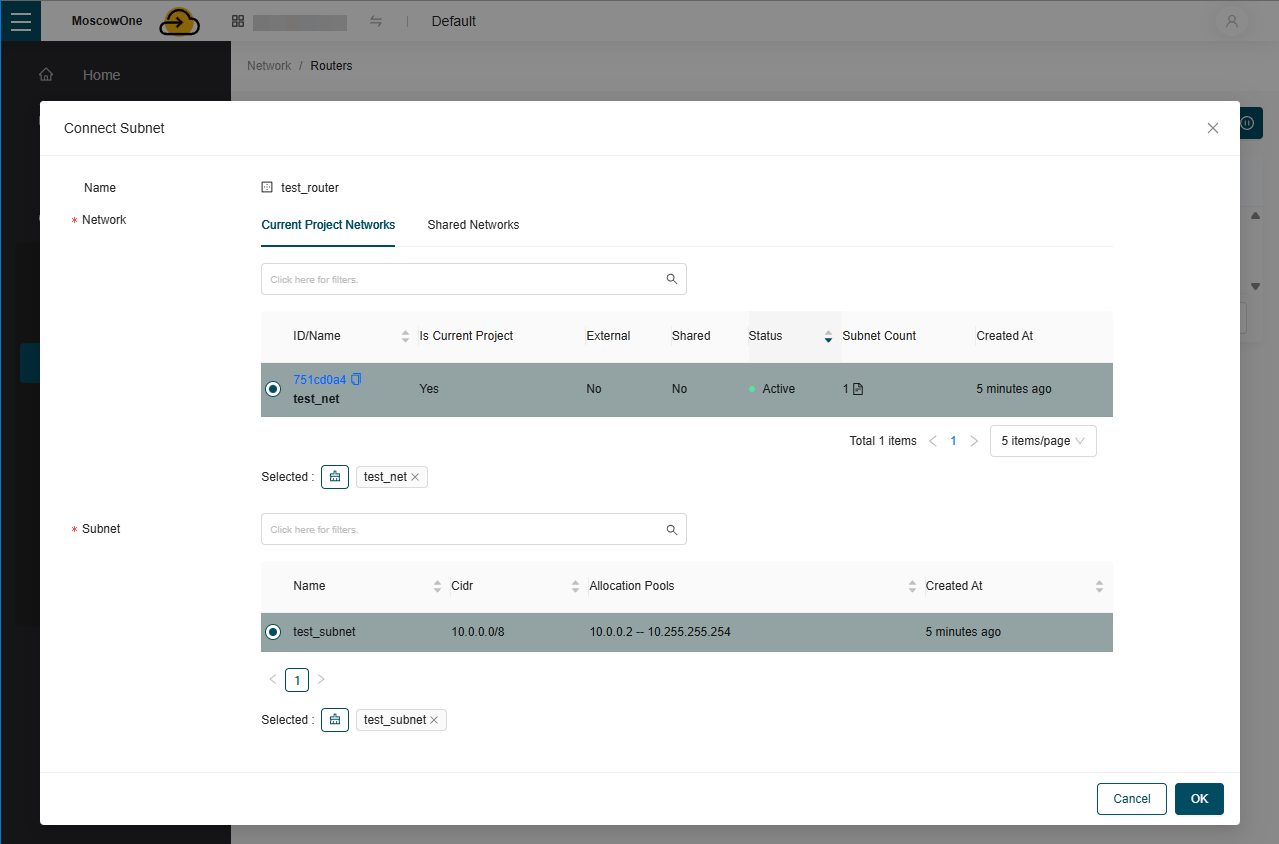
-
Attaching a local IP to an already created VM (required for attaching a floating one) Compute -> Instances
Find the VM you want to attach the floating IP to
Click More -> Related Resources – Attach Interface
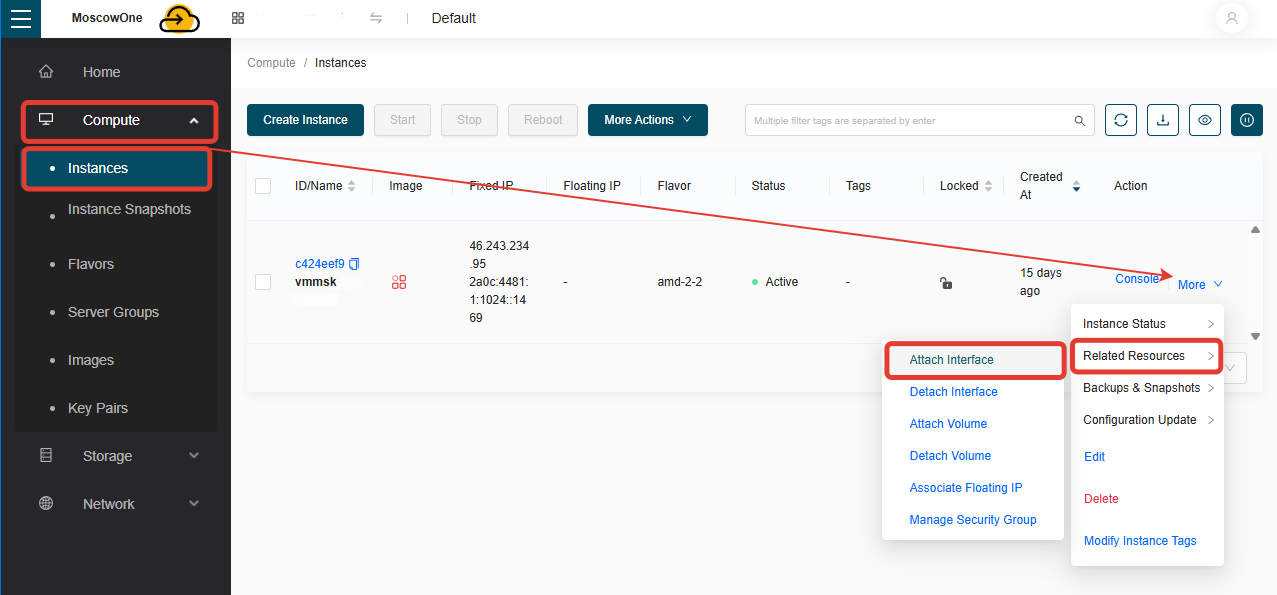
Select the recently created network
Click OK
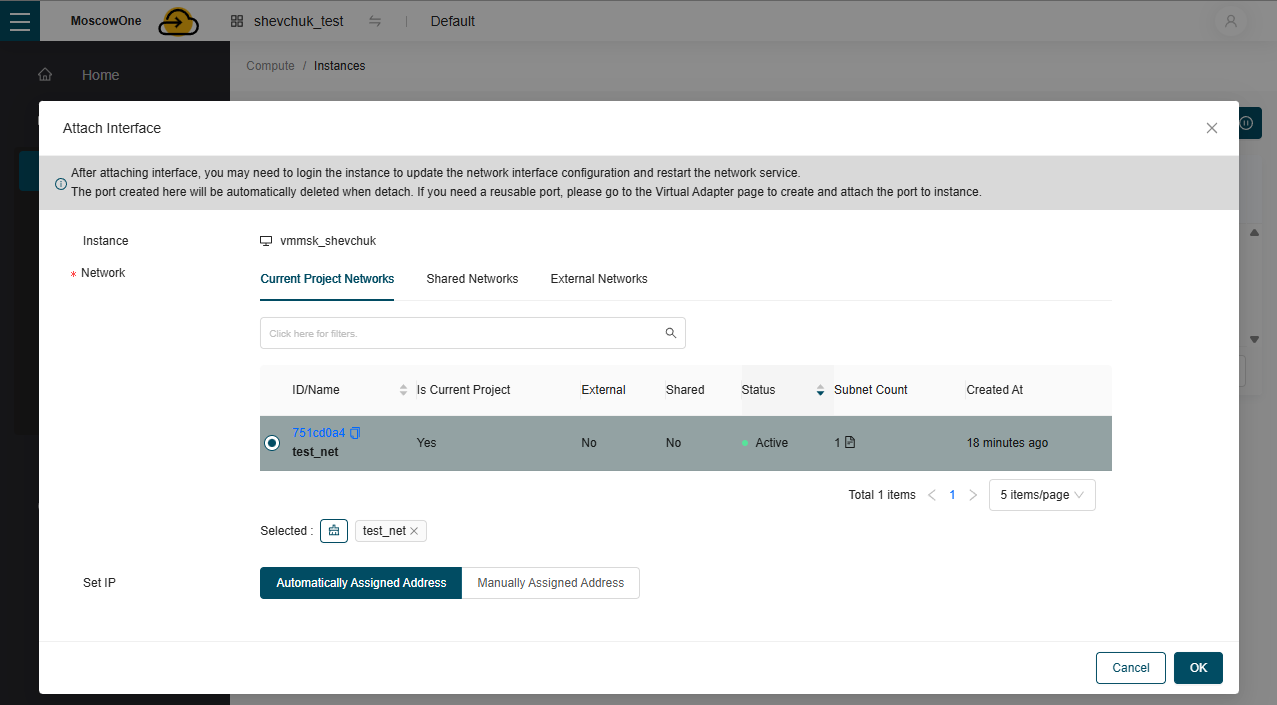
The VM should get an IP from the subnet you specified when creating the network.
-
Attaching a floating IP to a VM Compute -> Instances
Find the VM you want to attach the floating IP to
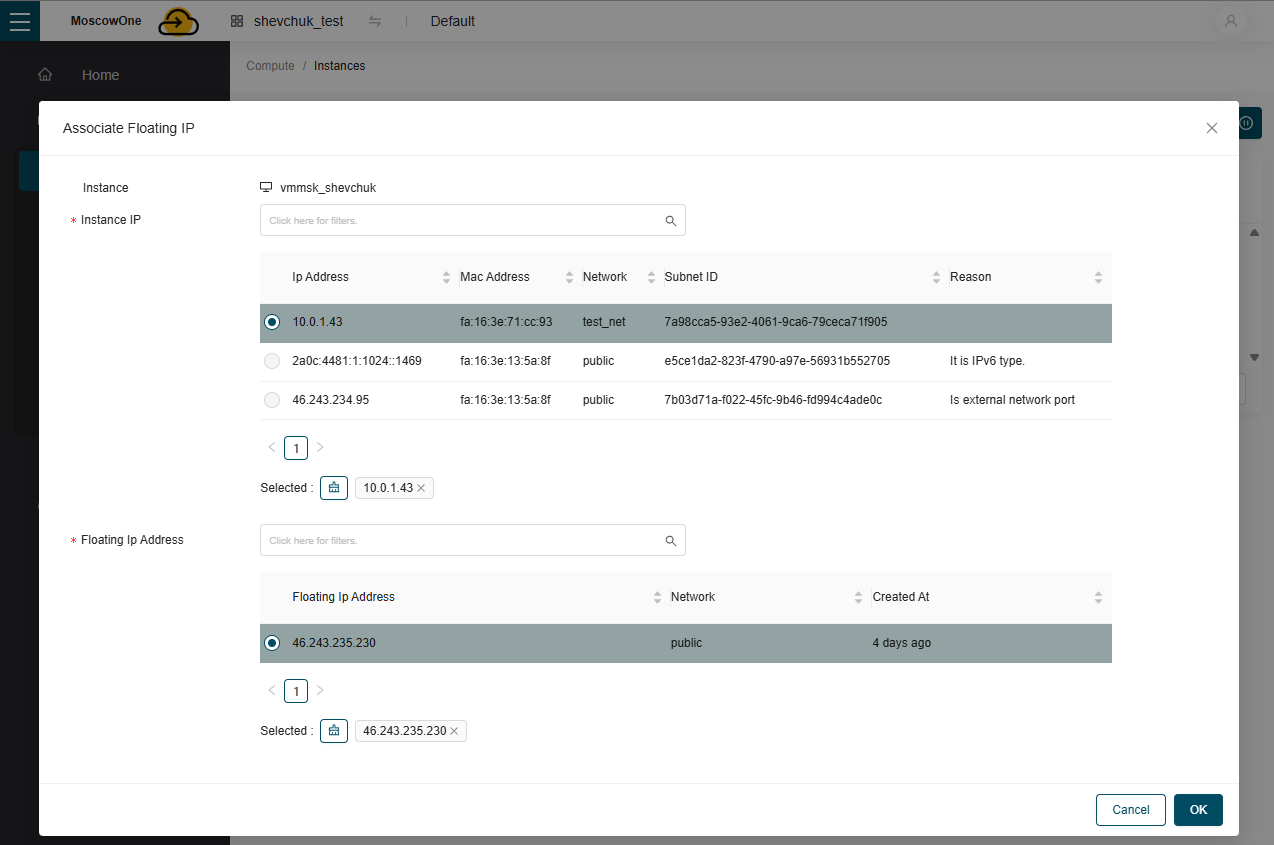
Click More -> Related Resources – Associate Floating IP
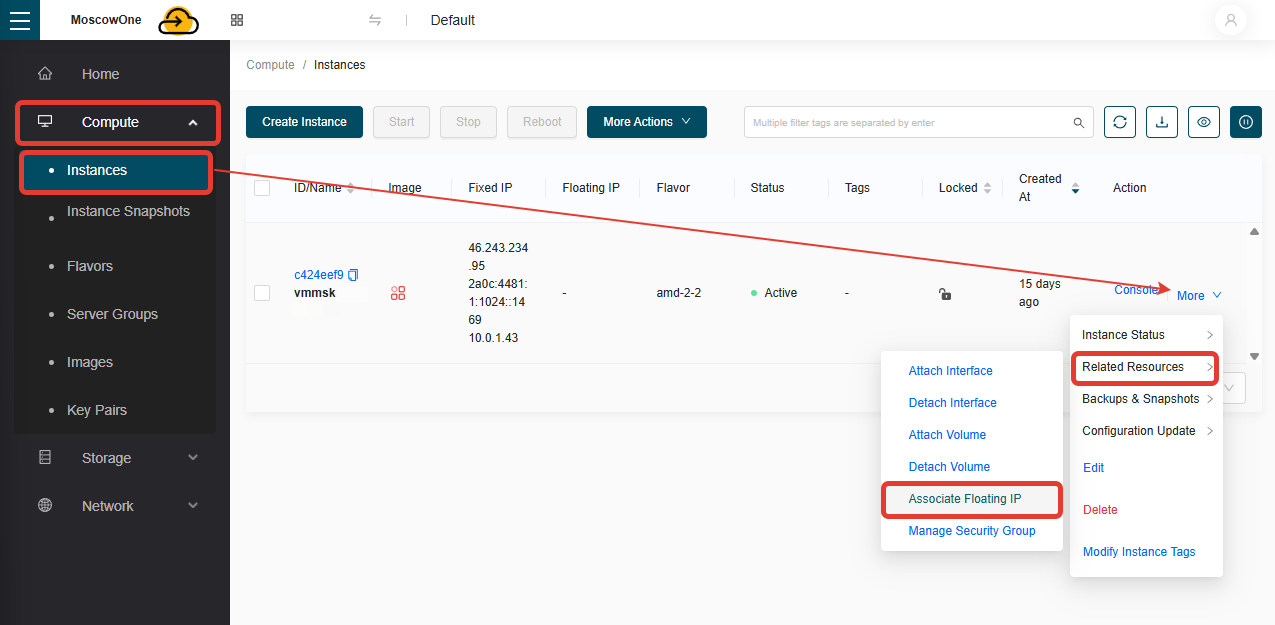
From the list, select the local IP attached to the VM (10.0.1.43). Then you can select the floating IP you created earlier.
Important!
- You cannot attach a floating IP to an external IP address (located in the public network).
- After attaching a floating IP, you must reboot the VM for the settings to take effect